Draft Documentation
This guide is currently in development. Content may be incomplete or subject to change.
Campaign Database
Learn how to create and manage persistent databases for your campaigns. Store customer data, enable lookups during calls, and track record versions over time.
In this guide
What is a Campaign Database?
A Campaign Database is a persistent data store associated with a campaign. Unlike datasets (which are used for single execution runs), databases persist across multiple executions and can be updated over time with new data.
| Feature | Database | Dataset |
|---|---|---|
| Persistence | Permanent (until deleted) | Per execution |
| Updates | Can be updated anytime | Immutable after upload |
| Versioning | Full version history | No versioning |
| Use Case | Customer data, lookups, auth | Contact lists for outreach |
| Unique Keys | Required (single or composite) | Phone number only |
Common Use Cases
Customer Authentication
Validate caller identity by matching RUT, name, or other identifiers during voice calls.
Data Lookups
Retrieve customer information during conversations to personalize responses.
Data Enrichment
Match dataset rows with database records to enrich contact data before execution.
Audit Trail
Track changes to customer data over time with full version history.
Creating a Database
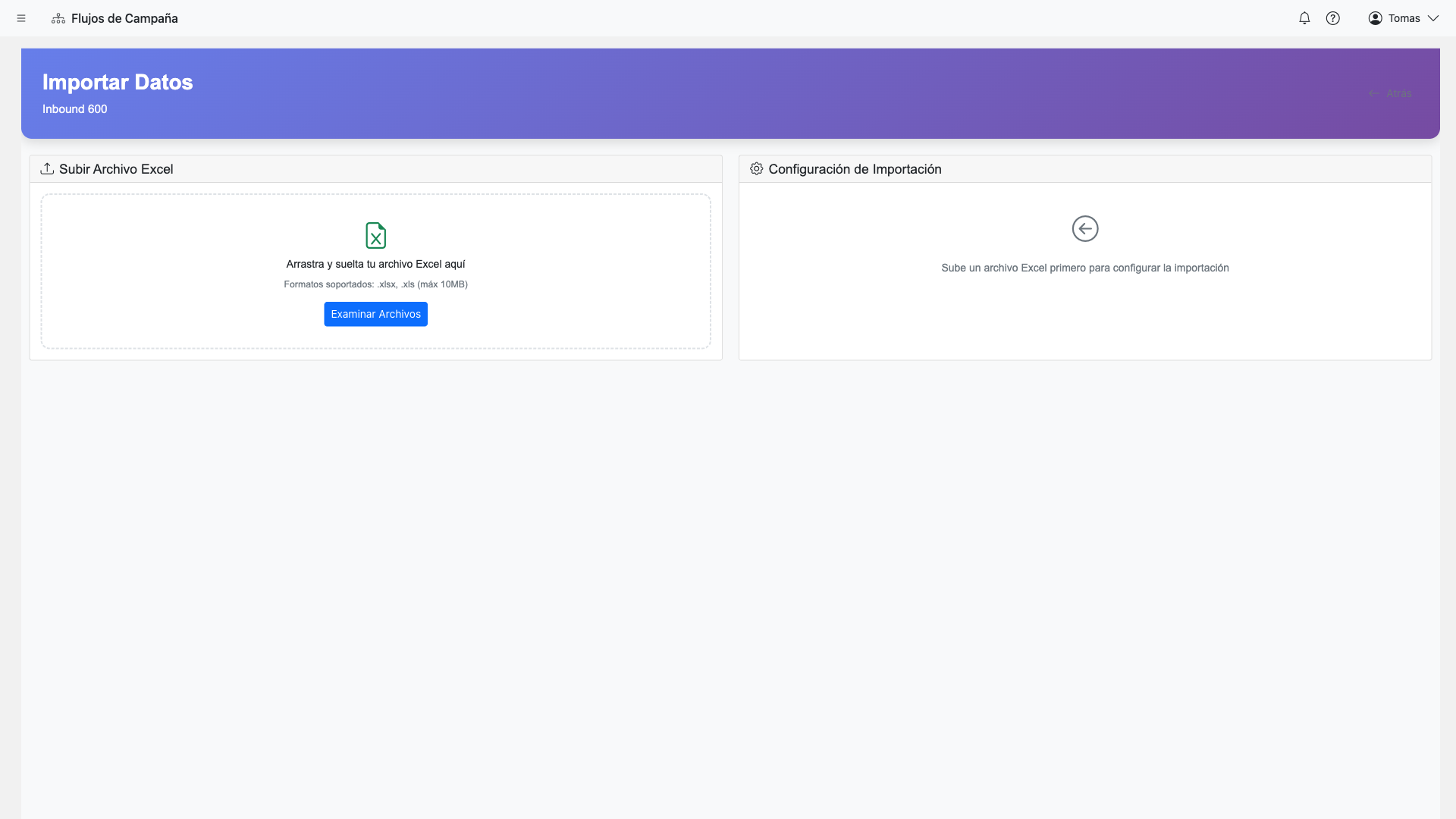
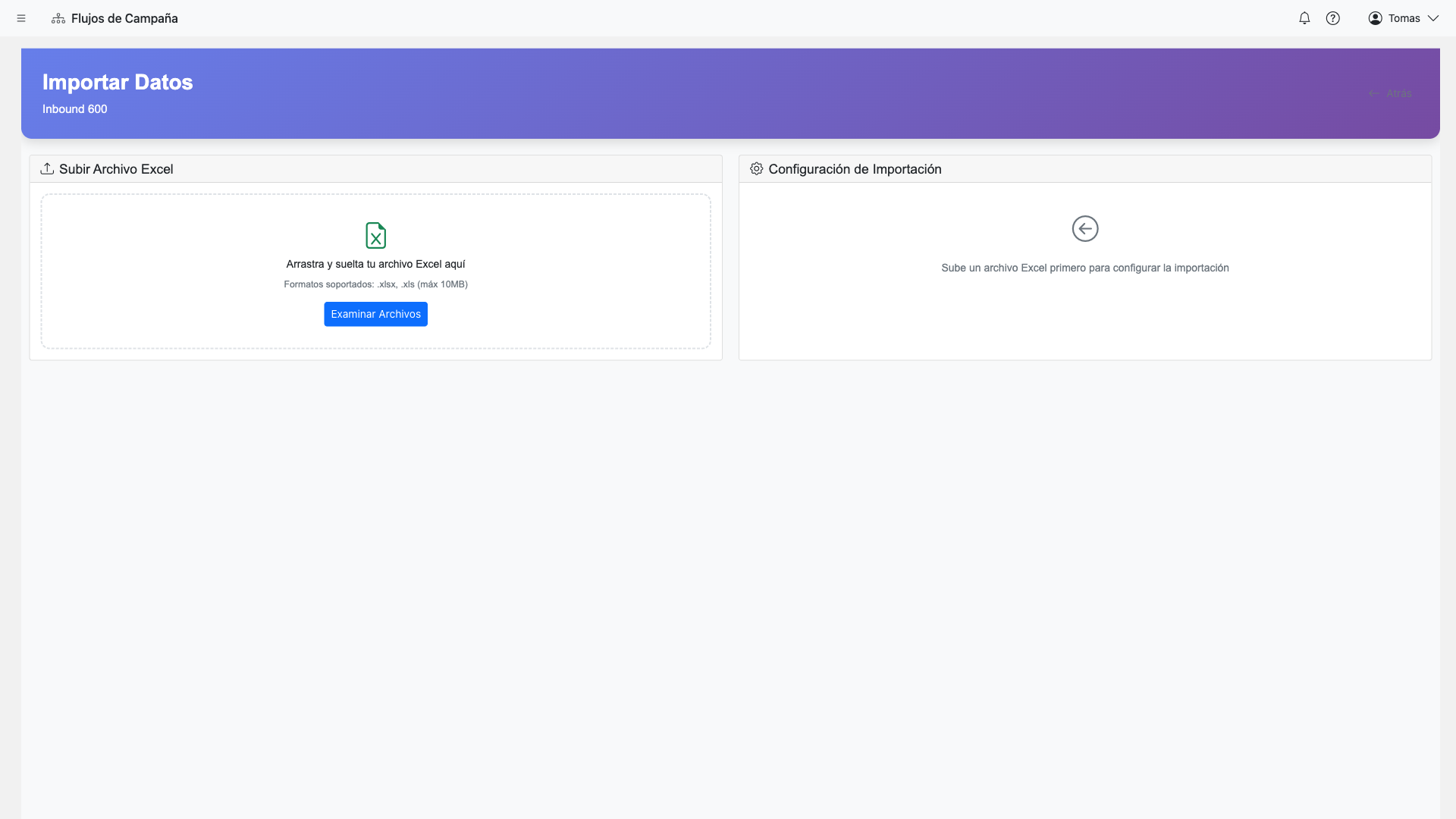
To create a campaign database, you'll upload an Excel file that defines the initial schema and data. The system automatically detects column types.
Steps:
- Open your campaign and navigate to the Database tab
- Click "Upload Database"
- Select an Excel file (.xlsx) from your computer
- Review the auto-detected schema
- Configure unique identifier column(s)
- Click "Create Database"
Tip: Use descriptive column headers in your Excel file. These become the field names in your database and are used for lookups and matching.
Schema Management
The database schema defines the structure of your data. Each column has a type that determines how data is stored, validated, and displayed.
Column Types
StringFree-form text
NumberNumeric values
PhonePhone numbers (validated)
EmailEmail addresses (validated)
RUTChilean RUT (validated)
DateDate values
BooleanTrue/False values
CurrencyMonetary amounts
Unique Identifier Configuration
Every database requires at least one unique identifier column. This is used to:
- Identify records for updates (upserts)
- Match records during lookups
- Prevent duplicate entries
Single Key
One column uniquely identifies each record (e.g., RUT, customer_id, email).
Composite Key
Multiple columns together form the unique identifier (e.g., RUT + policy_number).
Important: Once a database is created, the key columns cannot be changed. Choose your identifiers carefully based on your data requirements.
Importing Data
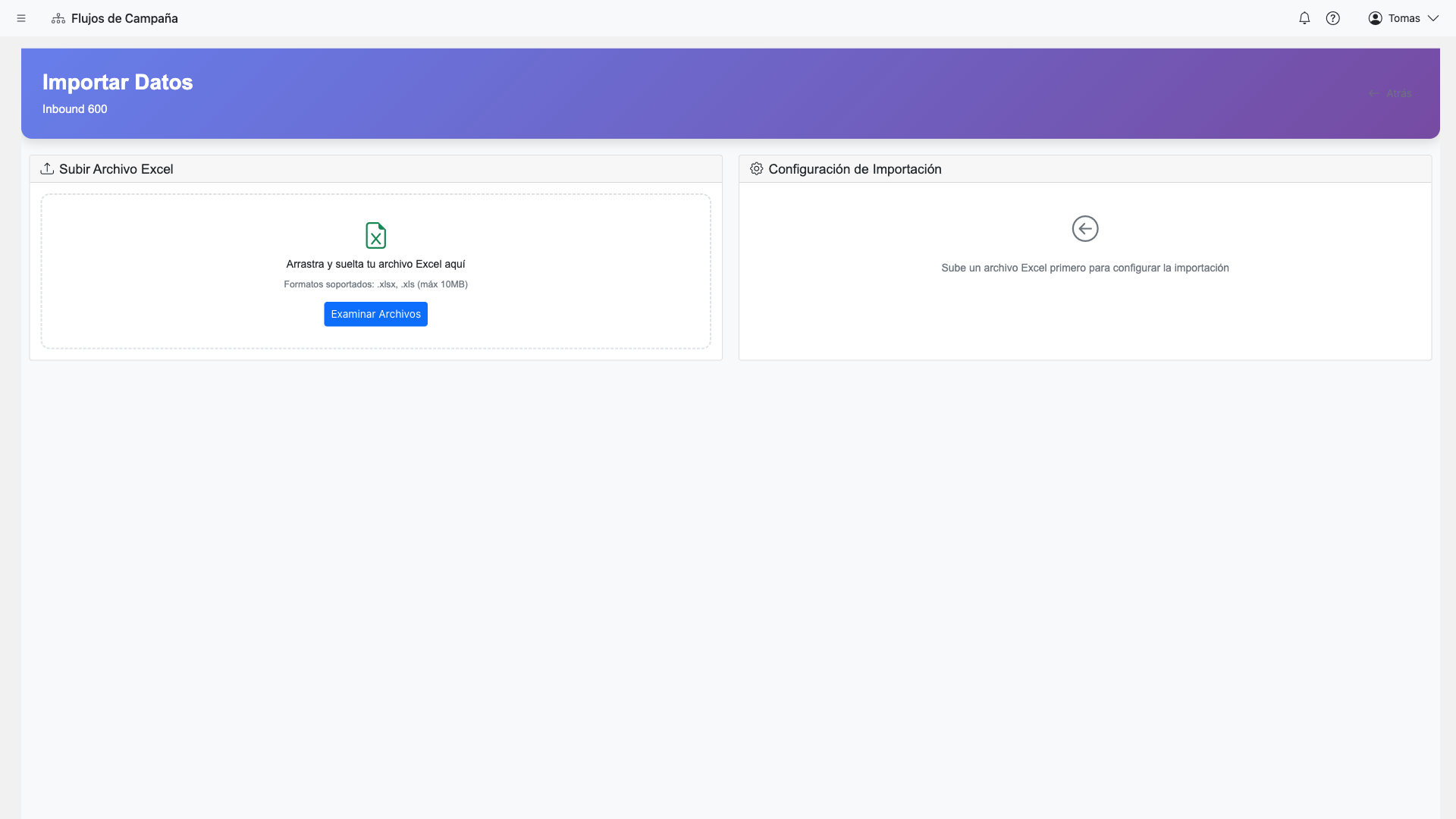
After creating a database, you can import additional data at any time. The system supports multiple import modes to handle different update scenarios.
Import Modes
AddOrUpdate
RecommendedInserts new records and updates existing ones based on the unique key. Existing records not in the import file are preserved.
ReplaceAll
Deletes all existing records and replaces with the imported data. Use with caution - this is destructive.
AddOnly
Only inserts new records. Existing records are skipped (not updated).
UpdateOnly
Only updates existing records. New records in the file are ignored.
Schema Change Detection
When importing data with different columns than the existing schema, the system detects the changes and asks for confirmation:
- New columns: Can be added after user confirmation
- Missing key columns: Import is blocked - keys are required
- Type mismatches: Warning shown, data may be converted
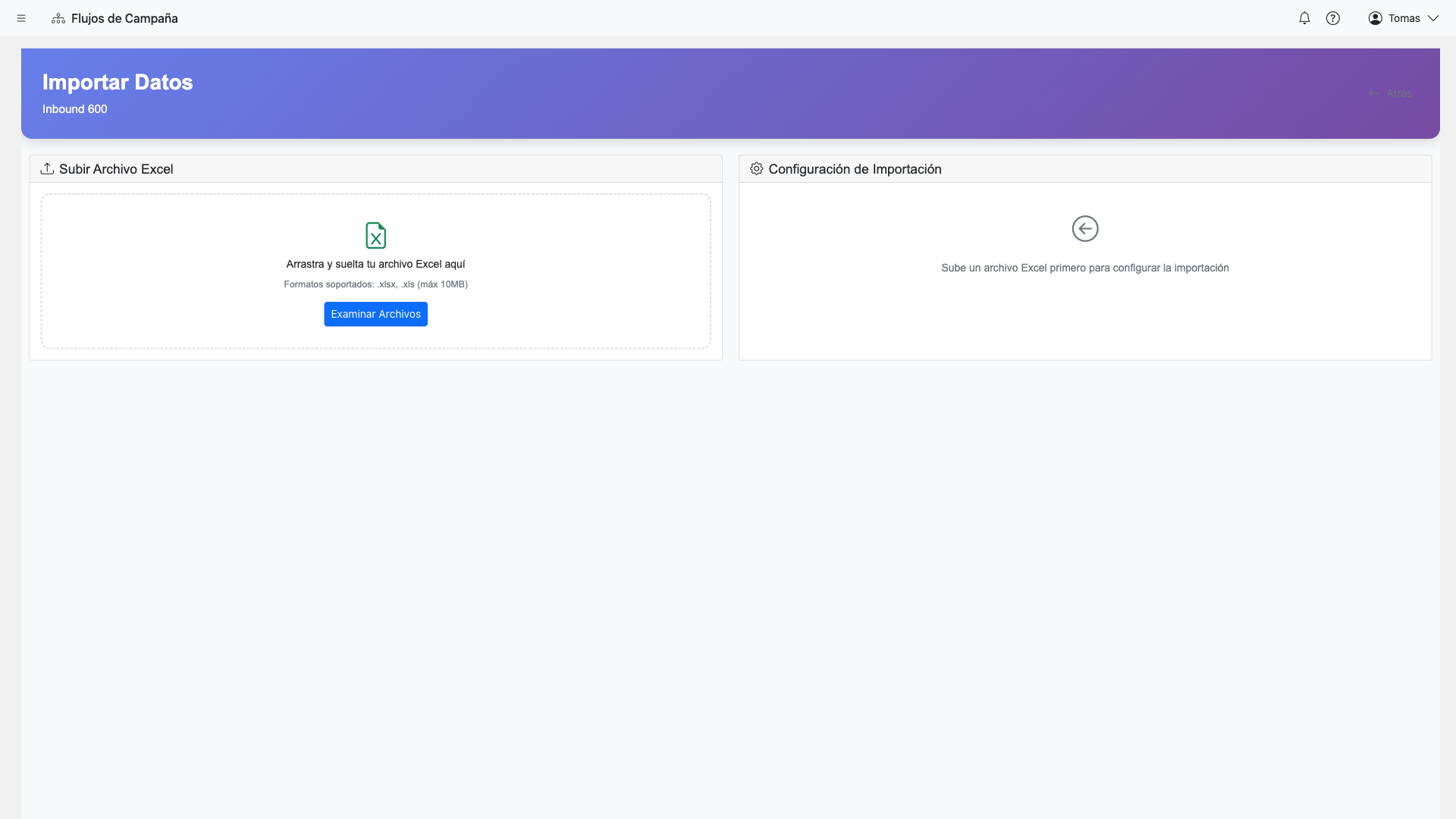
Import Progress
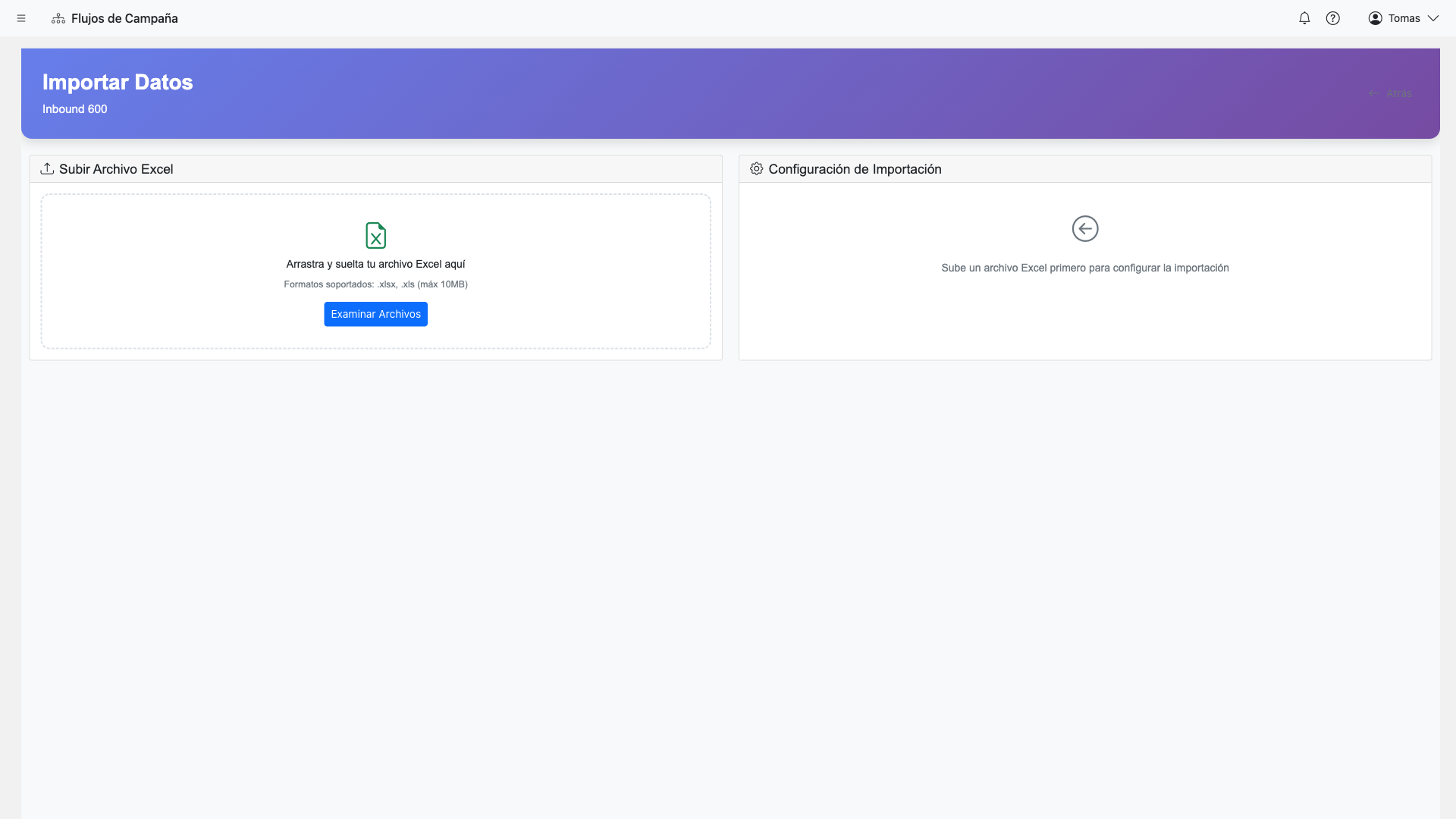
Large imports are processed in batches. You can monitor progress in real-time:
Record Versioning
Every time a record is updated, a new version is created. This provides a complete audit trail of all changes to your data.
How Versioning Works
- Initial import creates Version 1 of each record
- Each update (via import or API) creates a new version
- Previous versions are retained and queryable
- The "current" version is always used for lookups
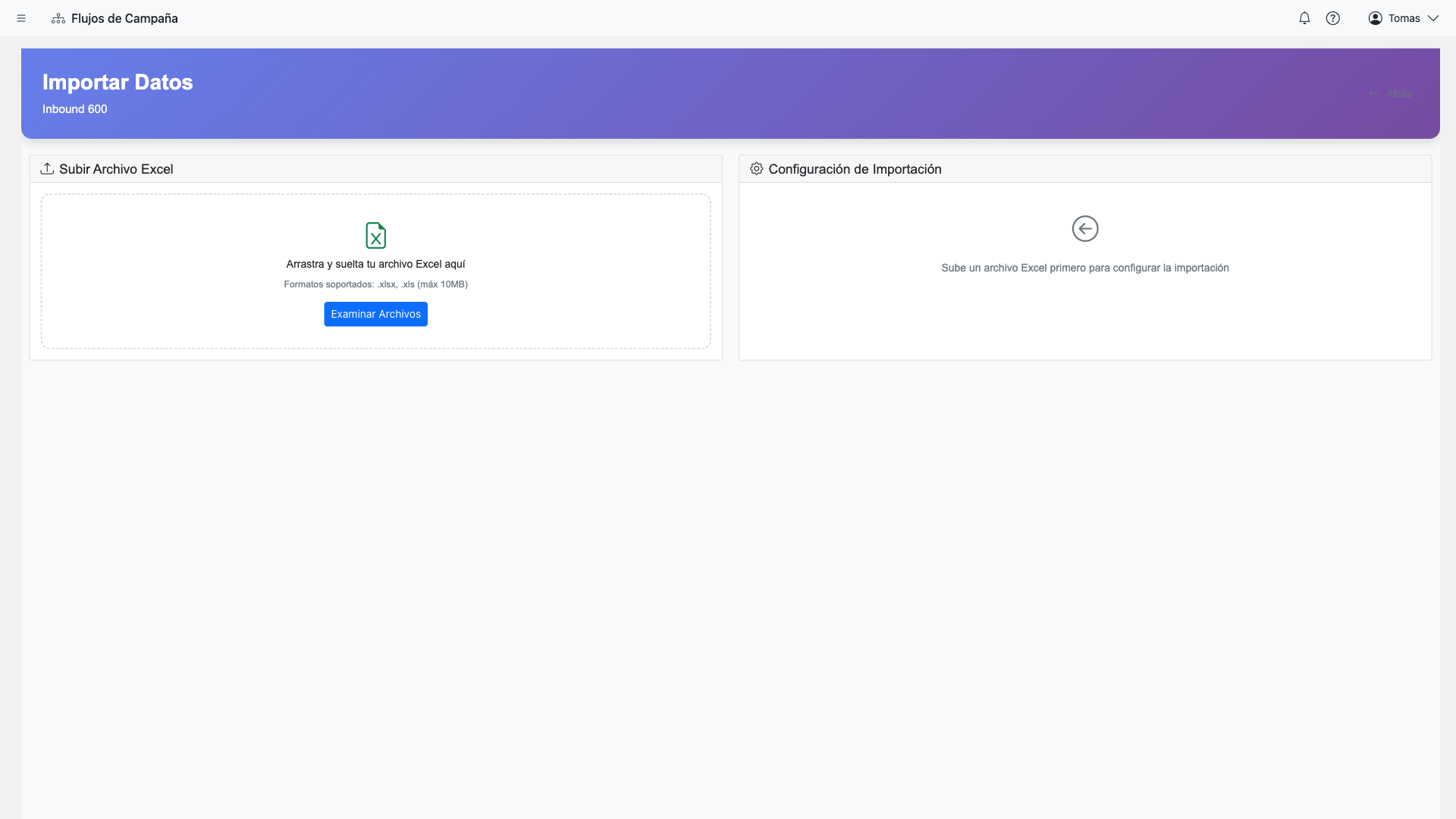
Viewing Version History
Click on any record to view its complete version history:
Tip: Version history is useful for auditing and compliance. You can see exactly when data changed and what the previous values were.
Querying Records
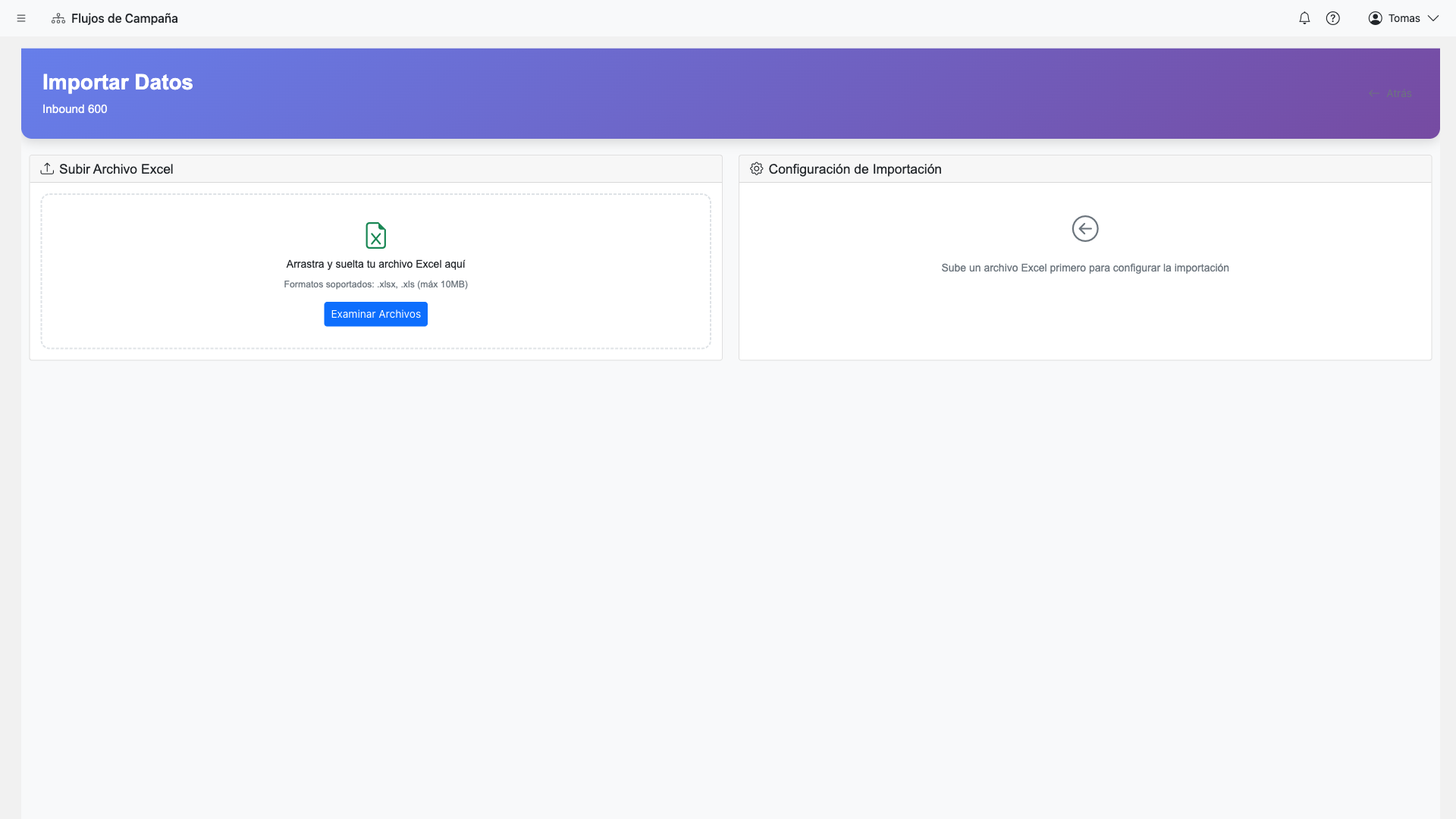
The database interface provides tools to search, filter, and export your data.
Search and Filter
- Quick search: Search across all text columns
- Column filters: Filter by specific column values
- Pagination: Navigate through large datasets
- Sorting: Sort by any column
Exporting Data
Export your database to Excel at any time:
- Full export: All records and columns
- Filtered export: Only records matching current filters
- Selected columns: Choose which columns to include
Database-Dataset Integration
When uploading a dataset, you can configure matching with your campaign database to enrich contact data automatically.
Matching Options
Match by Key Column
Specify which dataset column should match the database key. For example, match dataset "rut" column to database "RUT" key.
Match by Phone Number
If your database has a phone column, match using the dataset's phone number.
Data Prefix Configuration
To avoid column name conflicts, database fields are prefixed when merged with dataset rows:
// Example: Database fields with "db_" prefix
{
  "phone": "+56912345678",      // Dataset field
  "name": "Juan",               // Dataset field
  "db_balance": 150000,         // Database field
  "db_last_payment": "2024-01"  // Database field
}
Tip: Use these prefixed field names in your flow variables and message templates to access database data during execution.