Draft Documentation
This guide is currently in development. Content may be incomplete or subject to change.
Dataset Management
Master the complete dataset lifecycle - from uploading contact lists to monitoring execution progress and exporting enriched results.
In this guide
Understanding Datasets
A dataset is a collection of contact records that your flow will process. Each row represents one contact to reach via WhatsApp, Voice, or both.
Dataset Lifecycle
Dataset vs Database
Datasets are for outreach - each row is processed once through your flow. Databases are for persistent data - used for lookups and enrichment across multiple executions.Learn more about databases →
Uploading a Dataset
File Requirements
- Formats: CSV or Excel (.xlsx)
- Required: Phone number column
- Optional: Identifier, name, email, and custom columns
- Max size: 50,000 rows per file
Steps:
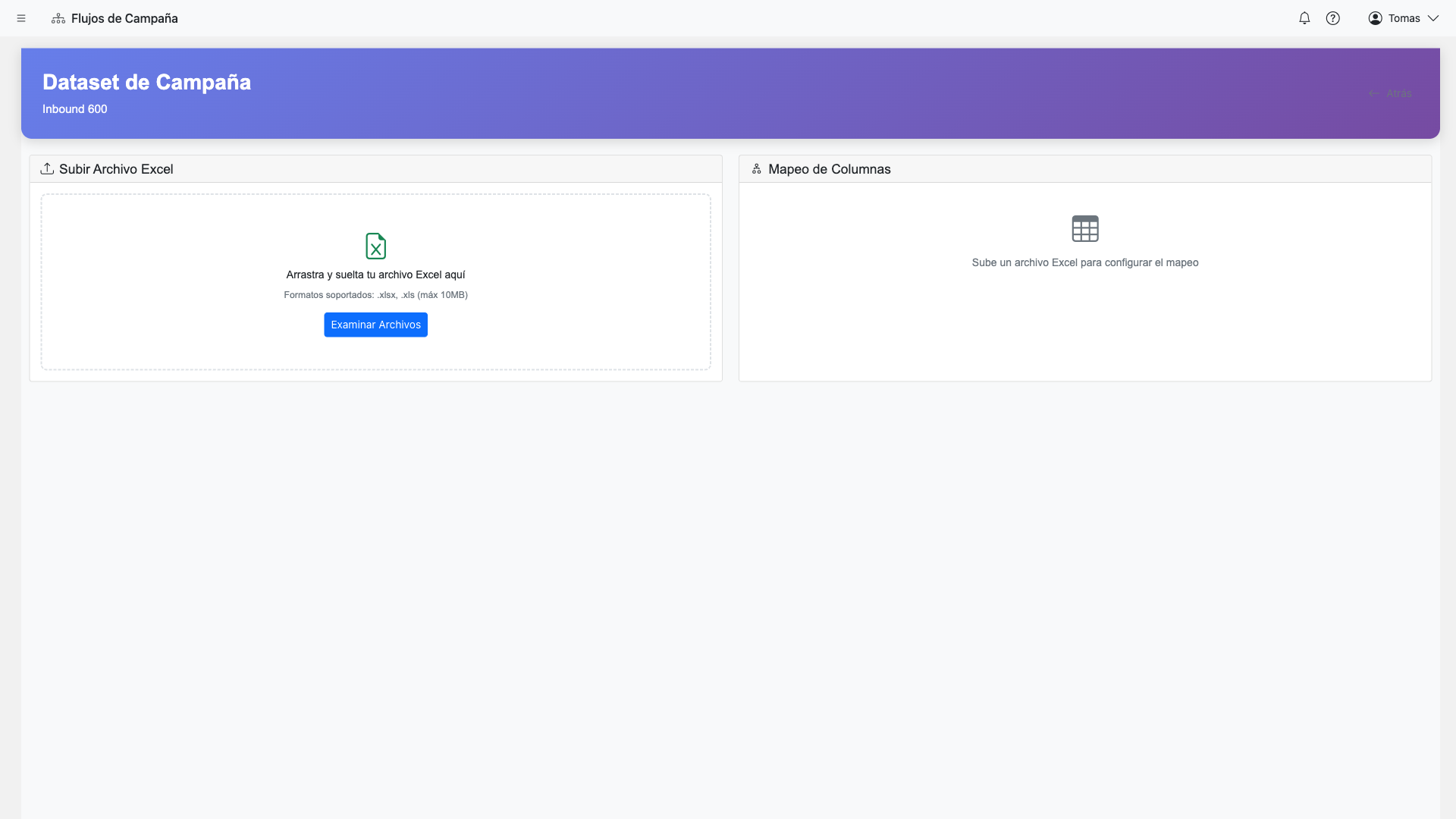
- Navigate to your campaign's Datasets tab
- Click "Upload Dataset"
- Select your CSV/Excel file
- Map the Phone column (required)
- Optionally map identifier, name, and email columns
- Set default country code if phone numbers don't include it
- Configure database matching (if applicable)
- Click "Process"
Country Code Cascade
If phone numbers don't include country codes, the system applies them in this order:
- Dataset level: Country code set during upload
- Campaign level: Default country code in campaign settings
- Client level: Organization's default country
Validation & Phone Normalization
After upload, the system validates and normalizes your data automatically.
Automatic Validation
Phone Validation
Phone numbers are validated for format and normalized to E.164 format (+56912345678). Invalid numbers are flagged for review.
Duplicate Detection
Duplicates are detected both within the file and against existing campaign datasets. You can choose to skip or include duplicates.
Database Matching
If configured, rows are matched against the campaign database. You can preview match rates before processing.
Validation results with corrections
Screenshot coming soon
Correction Suggestions
The system suggests corrections for common issues:
- Missing country codes
- Extra spaces or special characters
- Incorrect phone number formats
Row Status Tracking
Each dataset row has a status that tracks its progress through the flow execution.
Status Types
Pending
Not yet processed, waiting in queue
InProgress
Currently executing flow steps
WaitingResponse
Waiting for customer reply
Completed
Successfully finished all steps
Failed
Error occurred during execution
Skipped
Invalid phone or filtered out
Cancelled
User cancelled execution
Superseded
Replaced by newer dataset
Execution Monitoring
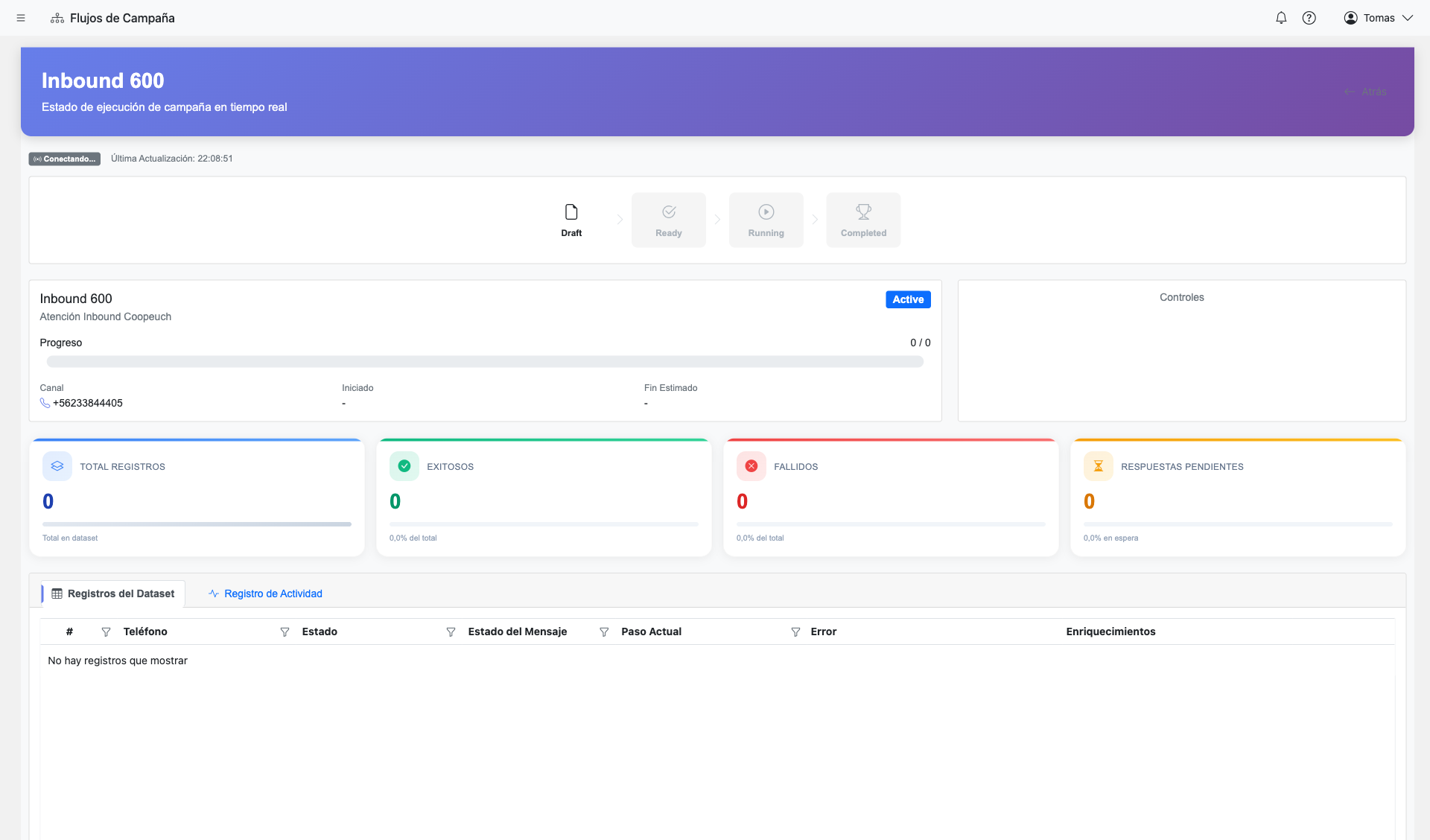
Monitor execution progress in real-time with live updates via SignalR.
Progress Overview
- Progress bar: Visual indicator of completion percentage
- Status breakdown: Count by status (completed, failed, pending, etc.)
- Current step: Which flow step is being executed
- Rate metrics: Messages/calls per minute
Row-by-Row Grid
View individual row status in a searchable, filterable grid:

- Filter by status (show only failed, show only completed)
- Search by phone number or identifier
- Sort by execution time or status
- Click any row to see detailed history
Row Details & Interaction History
Click on any row to view its complete execution details and interaction history.
Individual row detail modal
Screenshot coming soon
Message Status
For WhatsApp messages, track delivery status:
Execution Timeline
View a chronological timeline of all events for a row:
Execution history timeline
Screenshot coming soon
- Flow step transitions with timestamps
- Messages sent and received
- Voice call events (connected, transferred, ended)
- AI classification and extraction results
- Errors and retries
Data Enrichment
During flow execution, data is enriched and stored back to the dataset row.
Types of Enrichments
AI Classification Results
Categories assigned by AI steps (e.g., "interested", "not_interested", "callback").
AI Extraction Results
Structured data extracted by AI (e.g., appointment date, reason for call).
Database Matched Data
Fields from the campaign database that matched this row.
Flow Variables
Custom variables set during flow execution using DatasetEnrich step.
Row enrichments section
Screenshot coming soon
Exporting Enriched Data
Export your dataset with all enrichments included:
- Go to the dataset's detail page
- Click "Export"
- Select columns to include (original + enrichments)
- Choose format (Excel or CSV)
- Download the enriched file
Dataset Supersession
When you upload a new dataset that contains phone numbers already in a previous dataset, the system handles this through "supersession."
How Supersession Works
- New dataset is uploaded with overlapping phone numbers
- Rows in the old dataset with matching phones are marked as "Superseded"
- Superseded rows are not processed (skipped during execution)
- The new dataset rows take priority
Important: Supersession only affects rows that haven't been processed yet. Completed or in-progress rows are not superseded.
Managing Multiple Waves
For campaigns with multiple outreach waves:
- Upload new datasets for each wave
- Previous dataset rows automatically supersede if phone overlaps
- Use unique identifiers to track which wave reached each contact