Draft Documentation
This guide is currently in development. Content may be incomplete or subject to change.
Flow Steps Reference
Complete reference for all available flow step types. Learn how to configure each step to build powerful multichannel workflows.
Step Categories
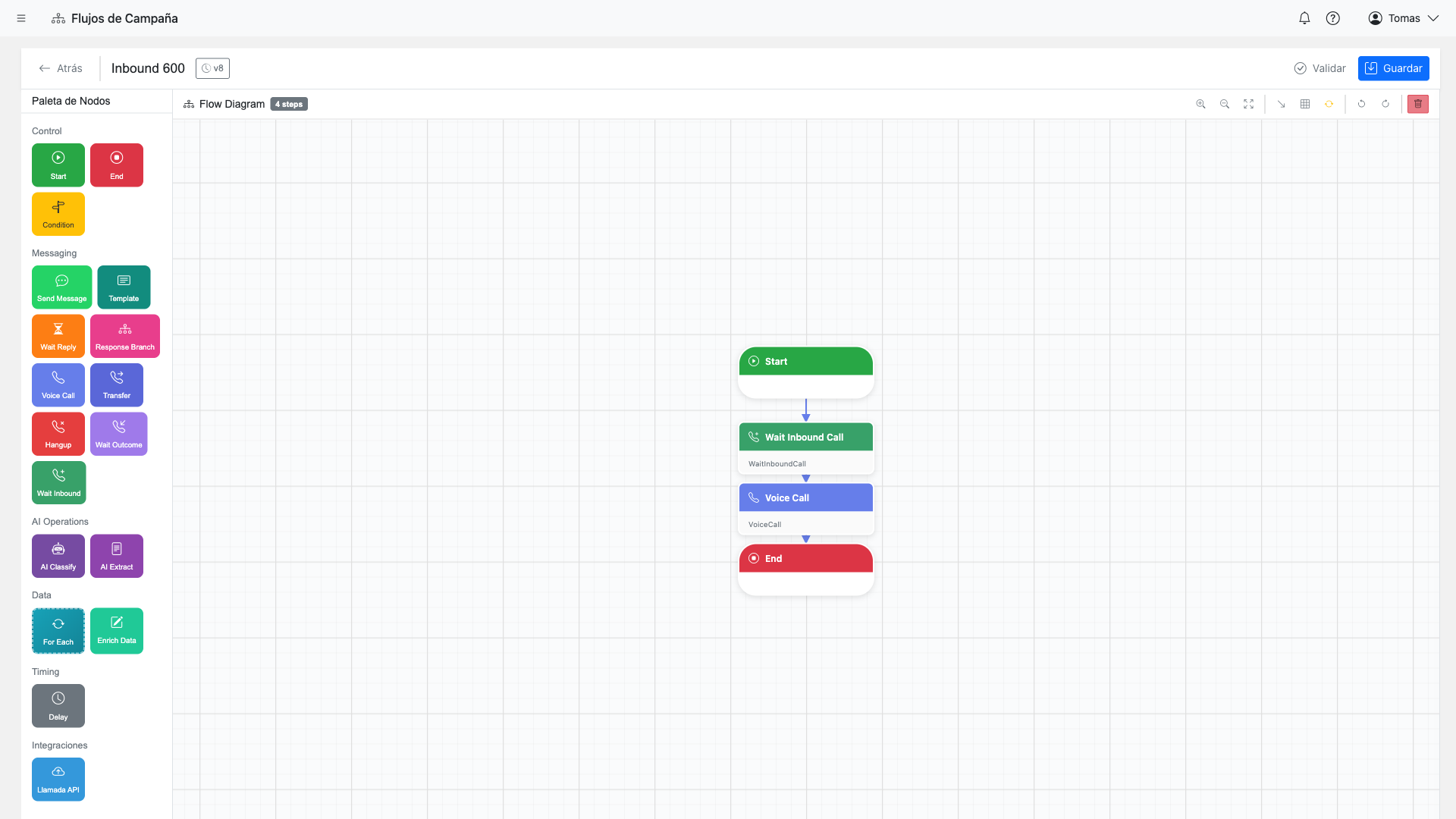
Control Flow Steps
Control flow steps manage the execution path of your workflow, including branching, looping, and timing.
Start
Entry point of the flow. Every flow begins with a Start step.
Configuration:
- Trigger type (manual, scheduled, inbound)
End
Exit point of the flow. Marks successful completion.
Configuration:
- Final status (completed, failed)
Condition
Conditional branching based on expressions. Routes to different paths based on data.
Configuration:
- Condition expression
- True/False branches
- Multiple conditions (else-if)
ForEachRow
Iterate through dataset rows. Executes child steps for each row.
Configuration:
- Batch size
- Delay between rows
- Error handling
ResponseBranch
Branch based on user response content. Includes auto-reply matching.
Configuration:
- Branch conditions
- Auto-reply patterns
- Default branch
- Timeout handling
Delay
Wait for a specified duration before continuing.
Configuration:
- Duration (seconds, minutes, hours)
- Business hours only option
Parallel
Execute multiple branches simultaneously.
Configuration:
- Parallel branches
- Wait for all vs. wait for any
Condition Step Example
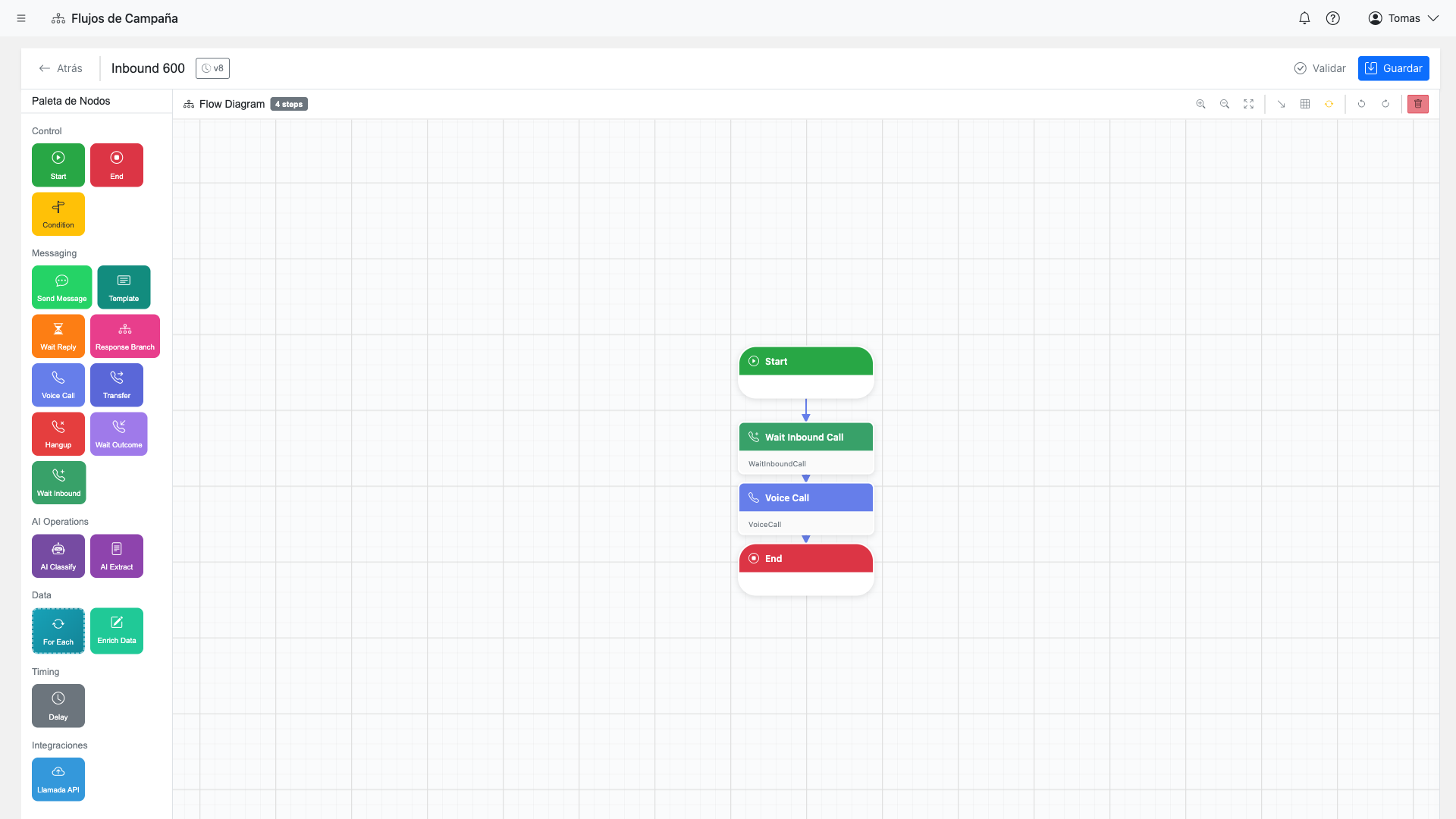
// Example condition expressions
row.balance > 100000           // Numeric comparison
row.status == "active"         // String equality
row.email != null              // Null check
row.score >= 80 && row.verified // Combined conditions
ResponseBranch Step
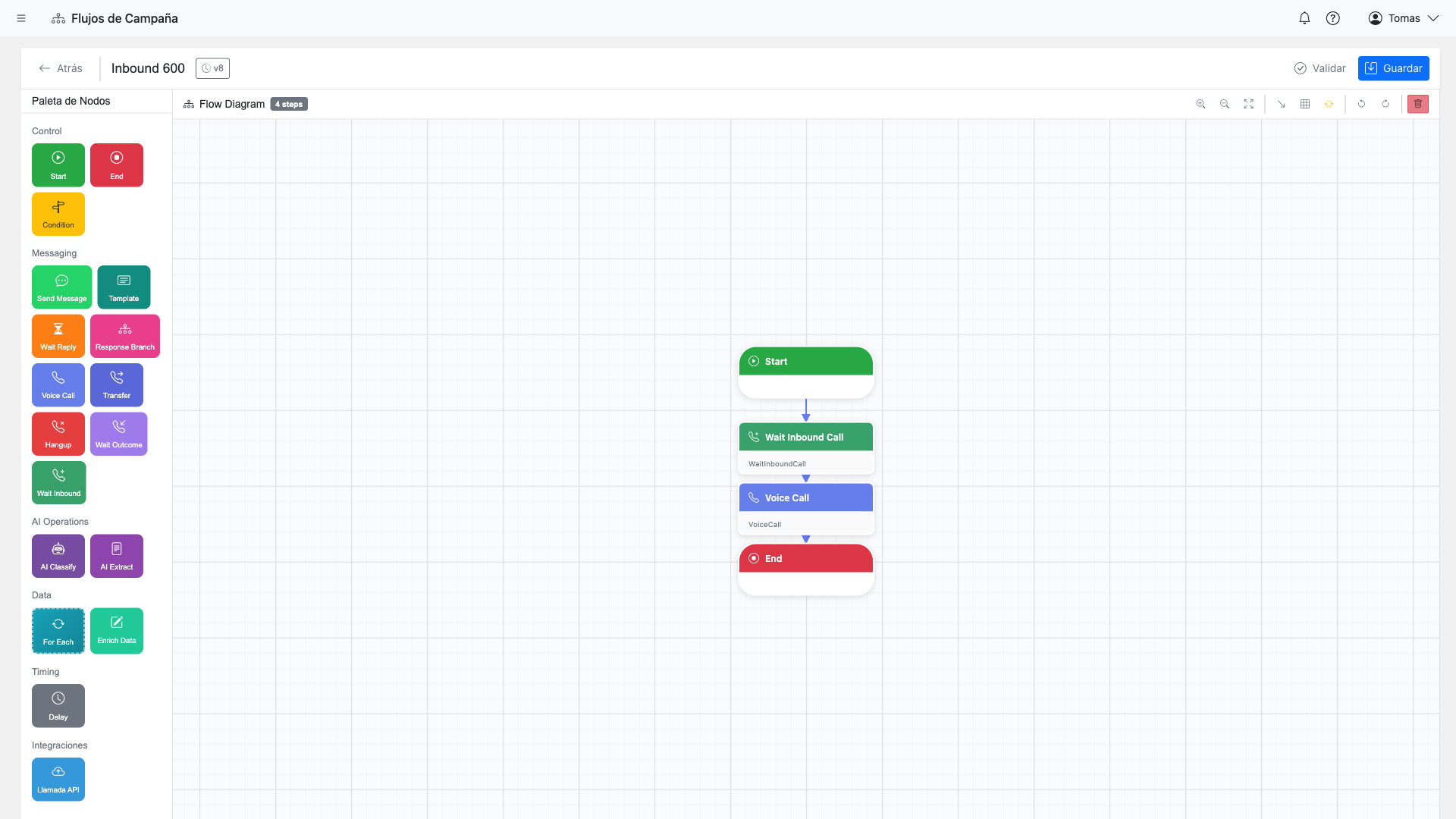
The ResponseBranch step is powerful for handling user replies. Configure:
- Branch patterns: Keywords or phrases that trigger each branch
- Auto-replies: Quick responses (1, 2, 3 or A, B, C)
- AI matching: Use AI to understand intent, not just keywords
- Default branch: Handle unmatched responses
- Timeout: What happens if no response received
Messaging Steps
Send and receive messages via WhatsApp Business API.
SendMessage
Send a custom text message via WhatsApp.
Configuration:
- Message text
- Variables {{field}}
- Channel selection
SendTemplate
Send a pre-approved WhatsApp template message.
Configuration:
- Template selection
- Template variables
- Header media (optional)
SendMedia
Send images, videos, or documents via WhatsApp.
Configuration:
- Media type
- File URL or upload
- Caption (optional)
WaitForResponse
Wait for customer to reply via WhatsApp.
Configuration:
- Timeout duration
- Timeout action
- Store response in variable
SendMessage Configuration
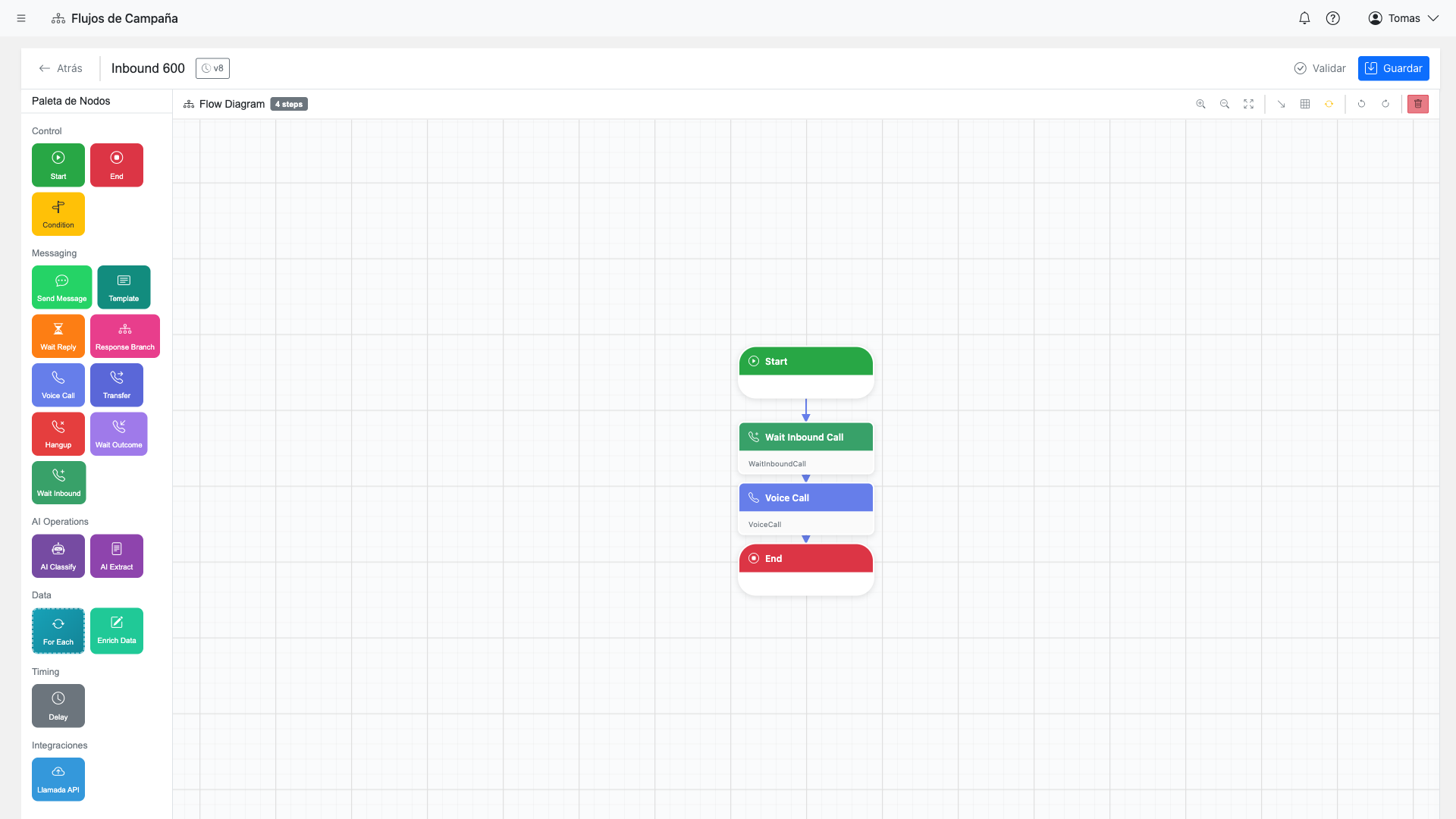
Use variables to personalize messages:
Hello {{name}}!

Your appointment is scheduled for {{appointment_date}}.

Reply with:
1 - Confirm
2 - Reschedule
3 - Cancel
SendTemplate Step
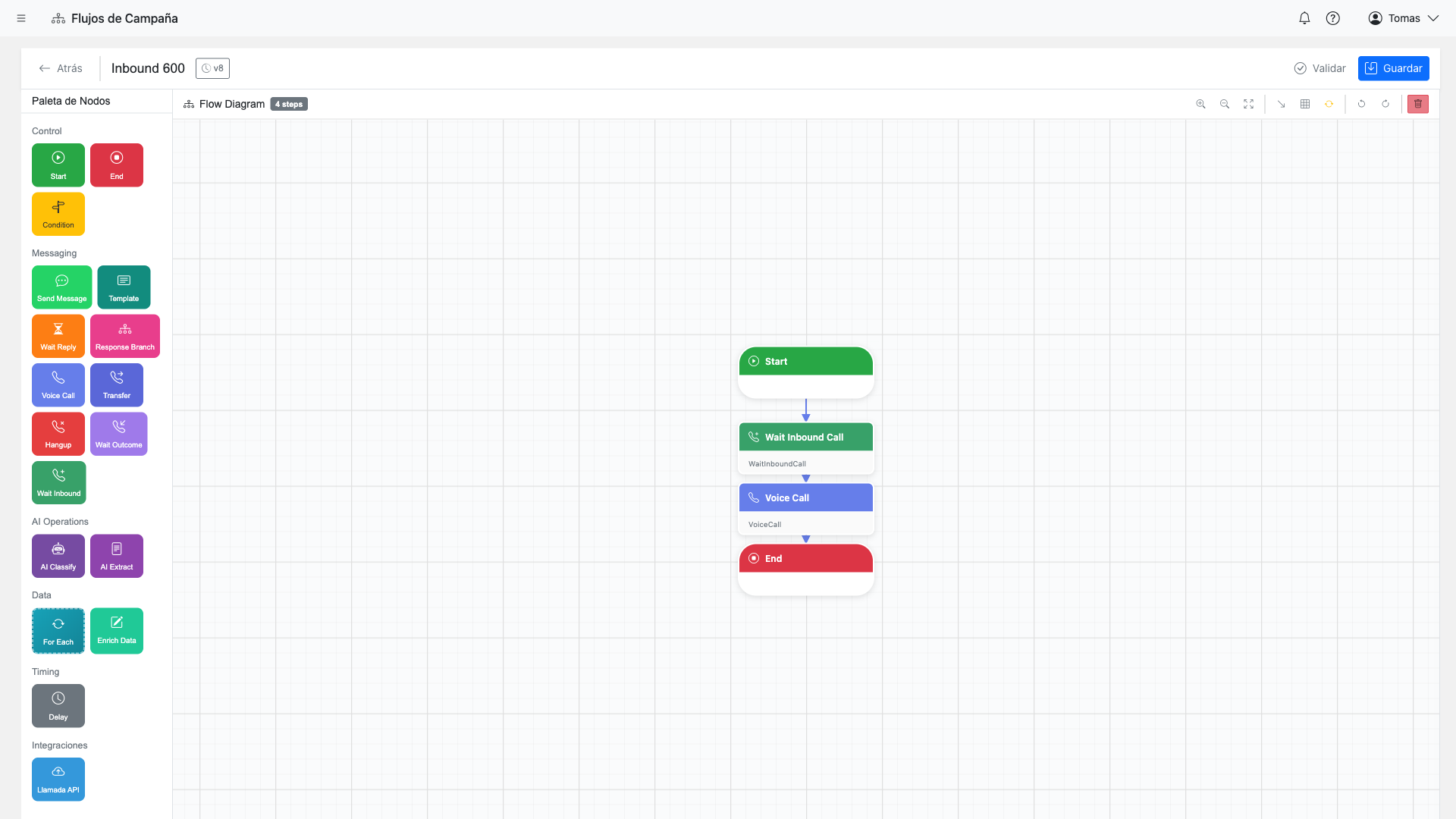
Important: For first contact with new customers, you must use SendTemplate with a pre-approved WhatsApp template. Custom messages can only be sent within a 24-hour conversation window.
WaitForResponse Step
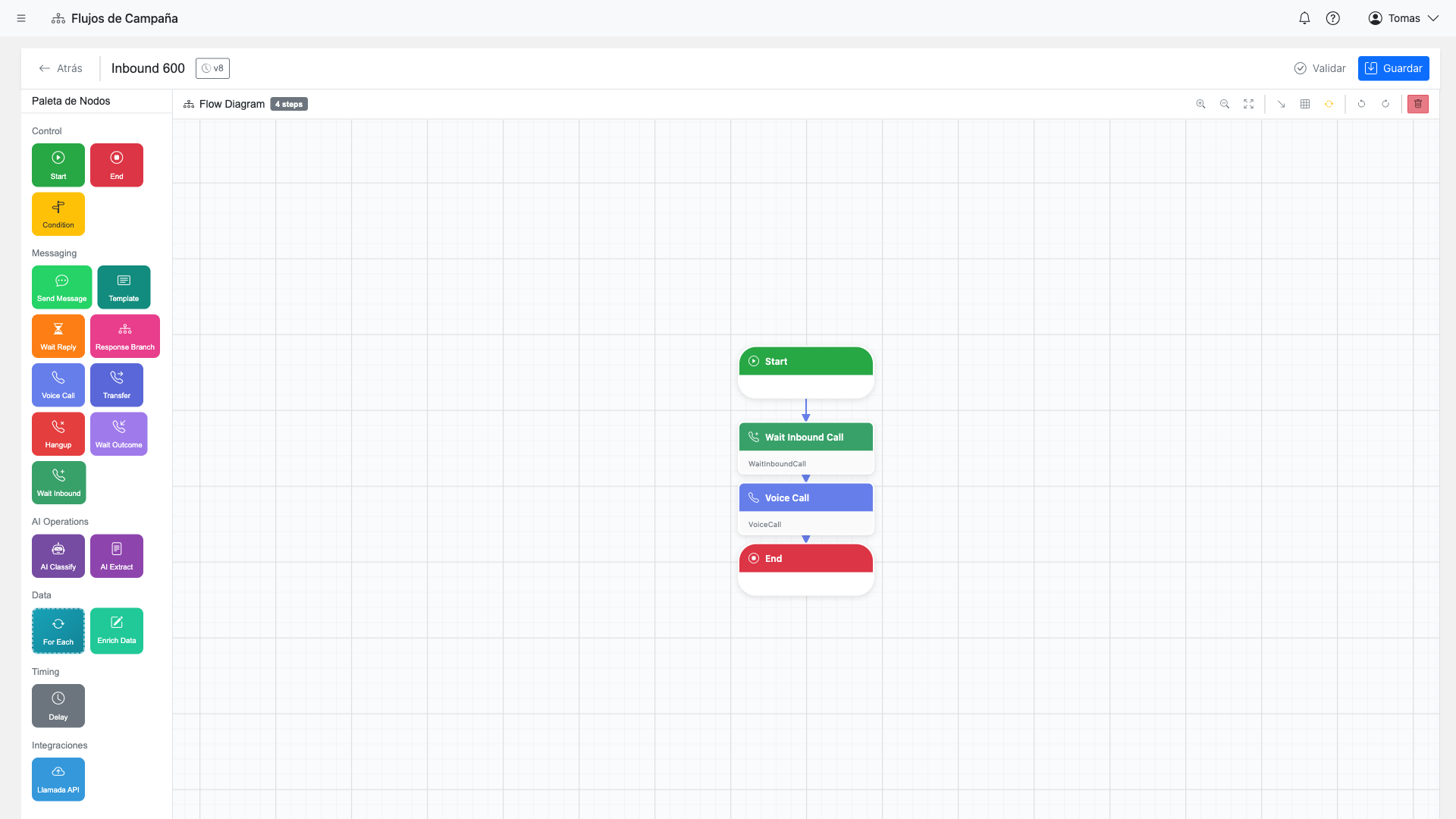
Voice Steps
Make and receive AI-powered voice calls with natural conversation capabilities.
VoiceCall
Initiate an outbound AI-powered voice call.
Configuration:
- System prompt (AI instructions)
- Voice selection
- Greeting message
- Recording enabled
- Max duration
- Voice actions
WaitInboundCall
Wait for an inbound call on assigned DID.
Configuration:
- DID/Channel
- Timeout
- Call routing rules
VoiceTransfer
Transfer active call to agent, queue, or external number.
Configuration:
- Destination type
- Destination (queue/number)
- Announcement
- Context headers
VoiceHangup
End the active voice call.
Configuration:
- Final message (optional)
- Hangup reason
WaitForVoiceOutcome
Wait for voice call to complete and capture outcome.
Configuration:
- Outcome variable
- Timeout handling
VoiceCall Configuration
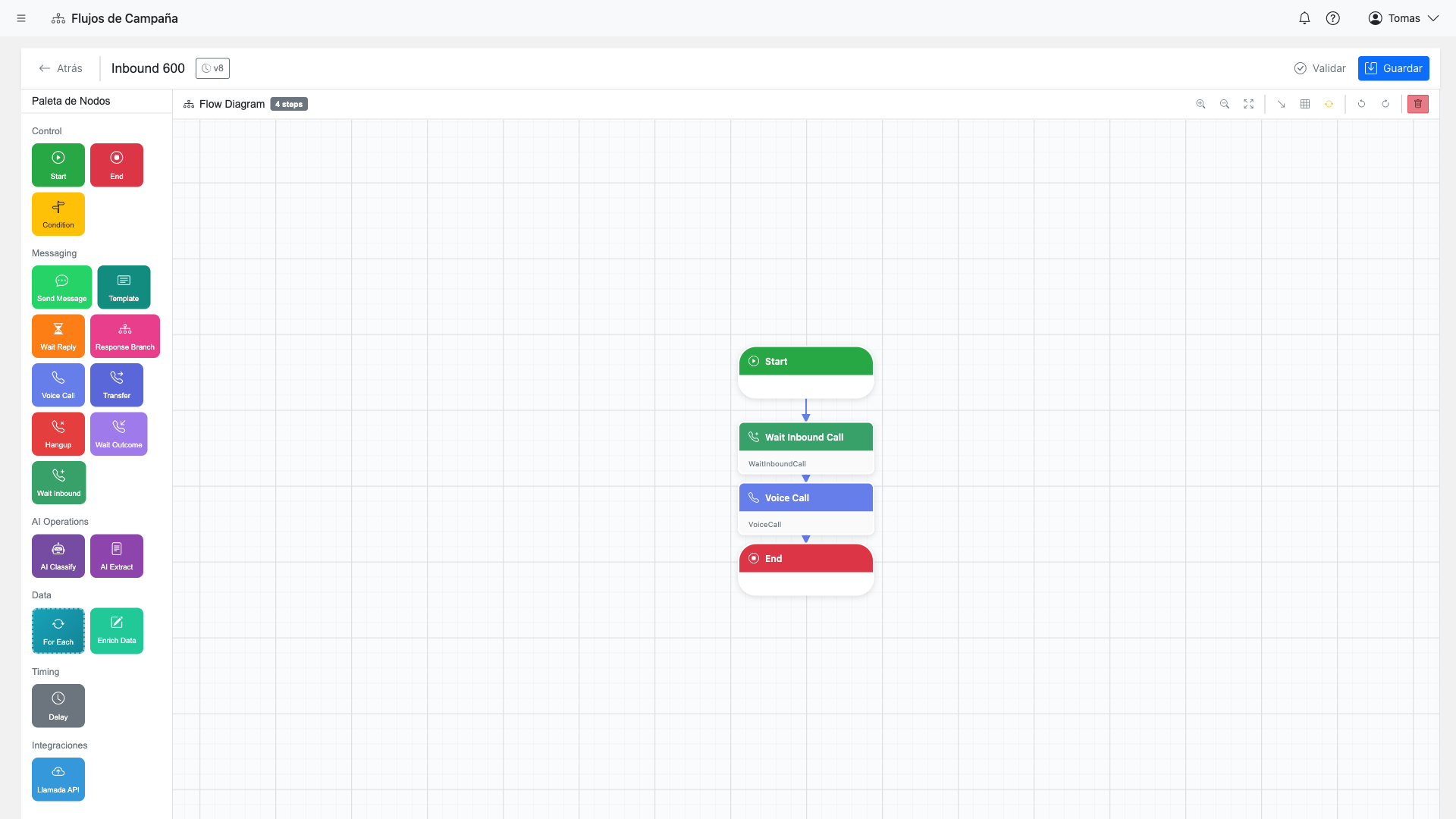
System Prompt
The system prompt defines the AI agent's behavior, personality, and objectives:
You are a friendly customer service representative for Acme Corp.
Your goal is to confirm the customer's appointment.

Customer Information:
- Name: {{name}}
- Appointment: {{appointment_date}}

Guidelines:
- Be polite and professional
- If they want to reschedule, offer available times
- If they cancel, ask for the reason
- Keep the call under 2 minutes
Voice Selection
Available voices from OpenAI:
Voice Actions
Configure actions the AI can take during the call.Learn more about voice actions →
AI Steps
Leverage AI to classify, extract, and generate content within your flows.
AIClassification
Categorize text or responses using AI.
Configuration:
- Categories list
- Input text/variable
- Output variable
- Confidence threshold
AIExtraction
Extract structured data from text using AI.
Configuration:
- Fields to extract
- Field types
- Input text
- Output variables
AIGenerate
Generate AI-powered responses or content.
Configuration:
- Prompt template
- Context variables
- Output variable
- Max tokens
AgentExecution
Run a configured AI agent with tools and memory.
Configuration:
- Agent selection
- Input context
- Available tools
- Max iterations
AIClassification Example
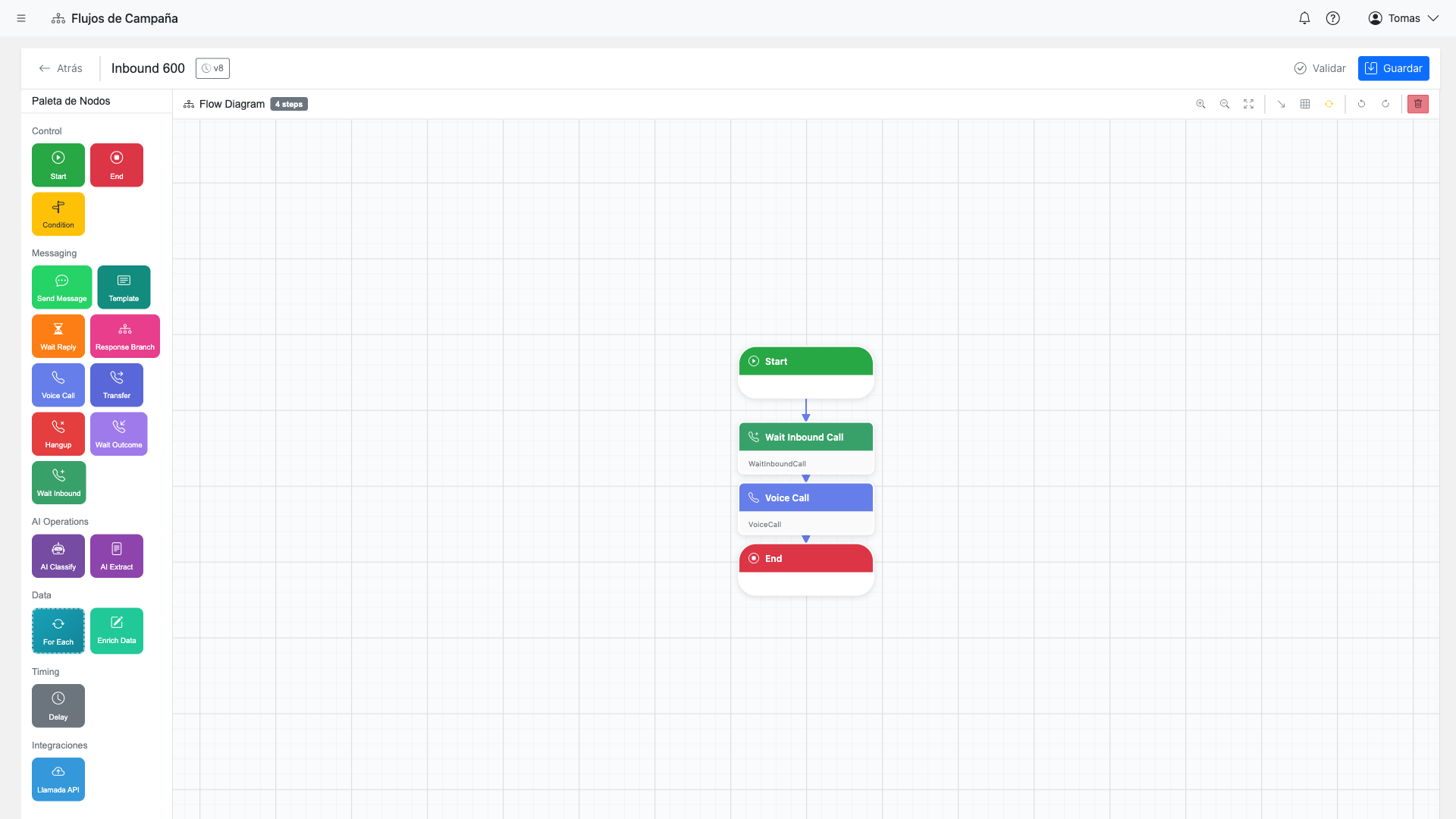
Configure categories that the AI will use to classify responses:
Categories:
- interested: Customer wants to proceed
- not_interested: Customer declines
- callback: Customer wants to be contacted later
- question: Customer has questions
- complaint: Customer has a complaint
AIExtraction Example
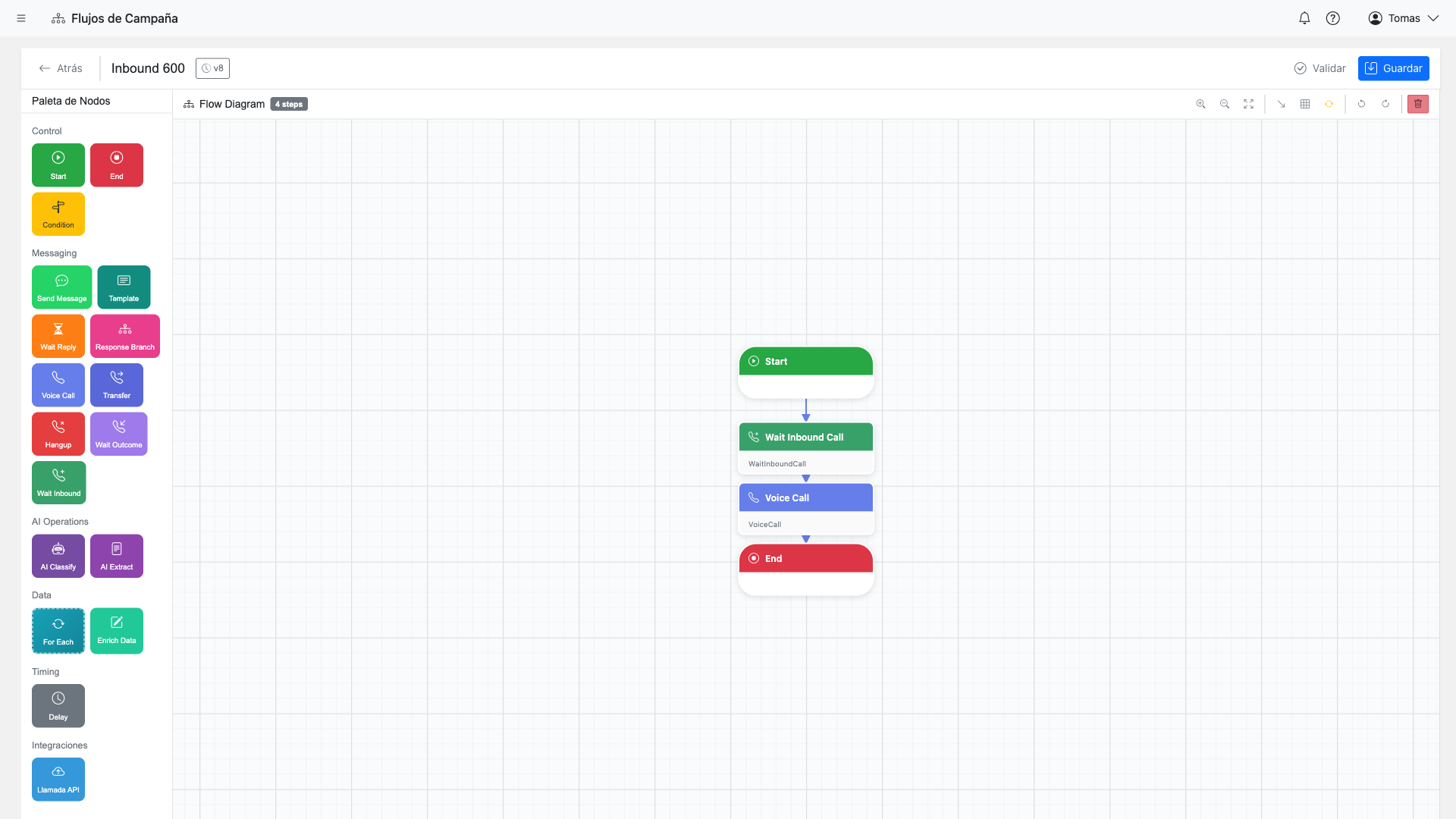
Define fields to extract from customer responses:
Fields:
- preferred_date (date): When they want to reschedule
- preferred_time (time): Morning, afternoon, or specific time
- reason (string): Why they're rescheduling
- contact_preference (enum): call, whatsapp, email
Data Steps
Manipulate and store data during flow execution.
DatasetEnrich
Write values back to the current dataset row.
Configuration:
- Field name
- Value (static or variable)
- Append vs. replace
SetVariable
Set a context variable for use in later steps.
Configuration:
- Variable name
- Value expression
- Scope (row, flow, global)
Transform
Map and transform data between formats.
Configuration:
- Input fields
- Transformation rules
- Output fields
DatasetEnrich Step
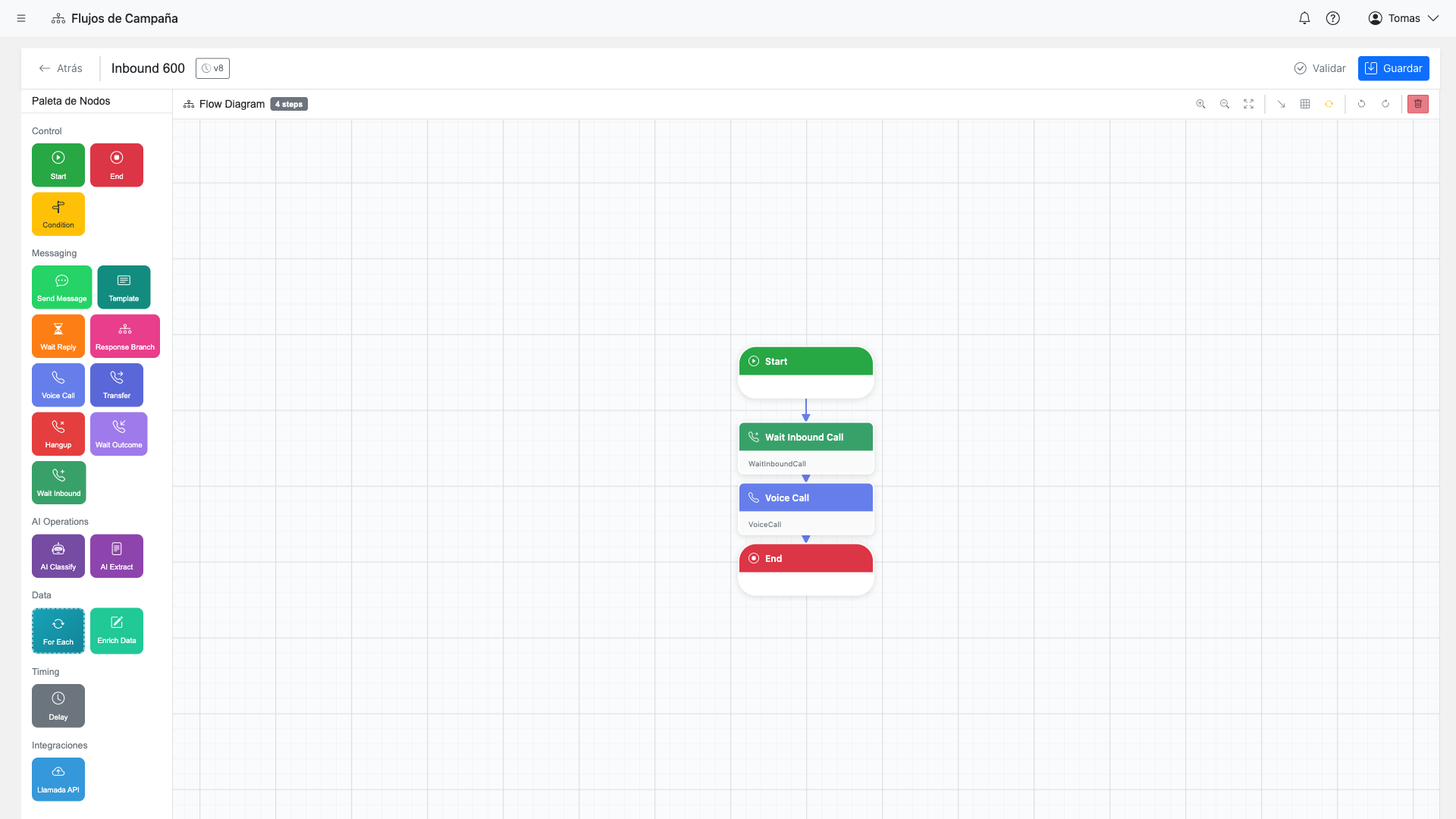
Use DatasetEnrich to save results back to the dataset for later export:
// Example enrichments
classification_result: {{ai_classification}}
extracted_date: {{extracted.preferred_date}}
call_outcome: {{voice_outcome}}
final_status: "completed"
Integration Steps
Connect your flows to external systems and services.
ApiCall
Call an external REST API.
Configuration:
- API integration
- Endpoint
- Method
- Parameters
- Response mapping
WebhookCall
Trigger a webhook with event data.
Configuration:
- Webhook URL
- Payload template
- Headers
- Retry policy
Notification
Send email or SMS notifications.
Configuration:
- Channel (email/SMS)
- Recipients
- Subject/Message
- Template
ApiCall Configuration
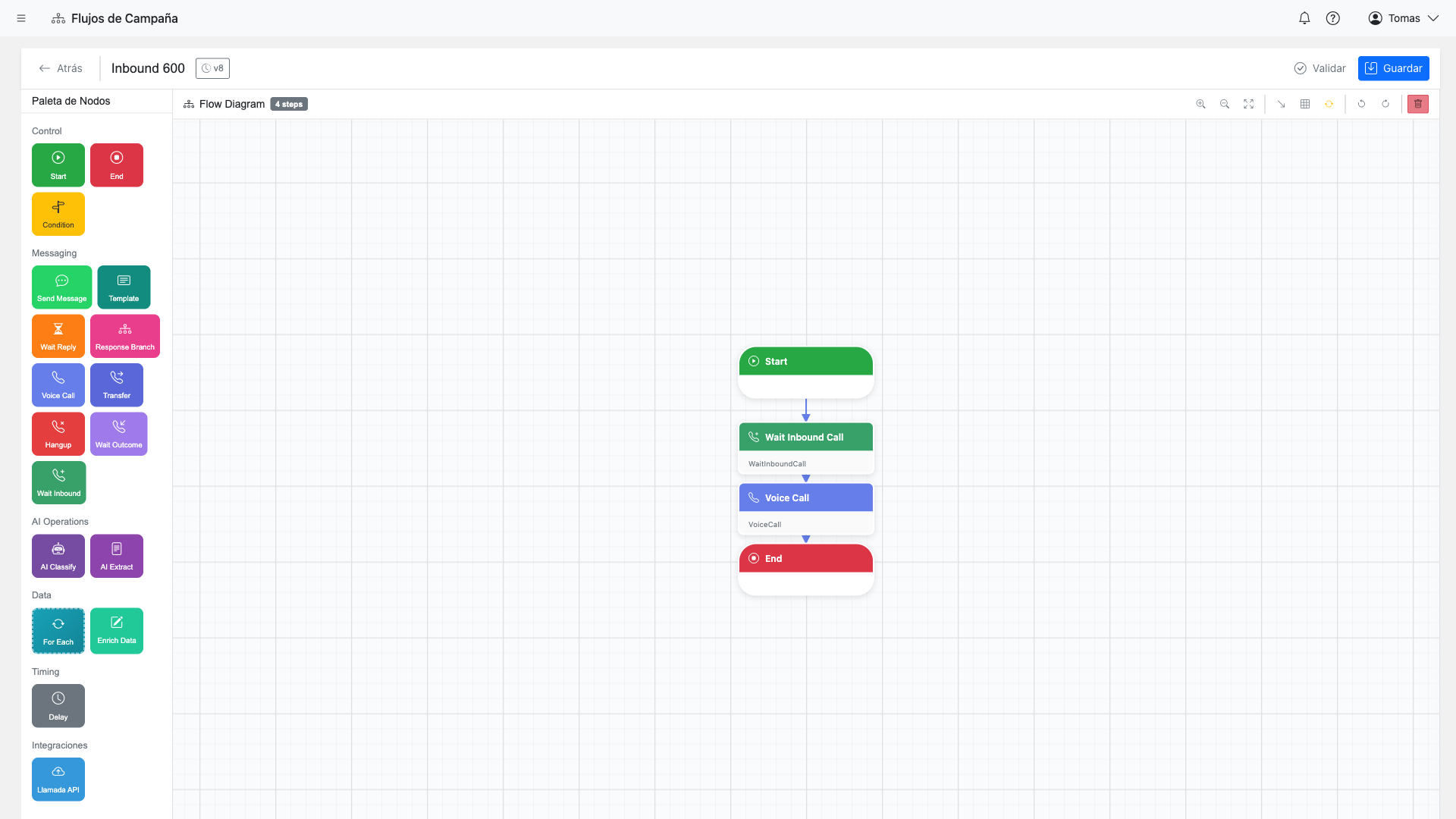
Configure API calls to integrate with external systems:
- Select integration: Choose from configured API credentials
- Map parameters: Pass flow variables to API parameters
- Map response: Extract API response data to flow variables
- Error handling: Define behavior on API errors
Best Practices
Always handle timeouts
Configure timeout behaviors for WaitForResponse and WaitInboundCall steps to prevent rows from being stuck indefinitely.
Use DatasetEnrich liberally
Save intermediate results to the dataset row so you can export complete data after execution.
Test with small datasets first
Before running large campaigns, test your flow with 5-10 contacts to verify all paths work correctly.
Handle the default branch
In ResponseBranch and Condition steps, always configure a default/else branch to handle unexpected inputs gracefully.