Draft Documentation
This guide is currently in development. Content may be incomplete or subject to change.
Getting Started
Welcome to Auralytik! This guide covers the essentials: logging in, completing your initial setup, and navigating the platform.
In this guide
Logging In
Auralytik uses Microsoft Azure Active Directory for secure authentication. You'll sign in with your organization's Microsoft account.
Steps:
- Navigate to app.auralytik.com in your browser
- Click the "Sign in with Microsoft" button
- Enter your organization email and password
- Complete any multi-factor authentication if required
- You'll be redirected to the Auralytik dashboard
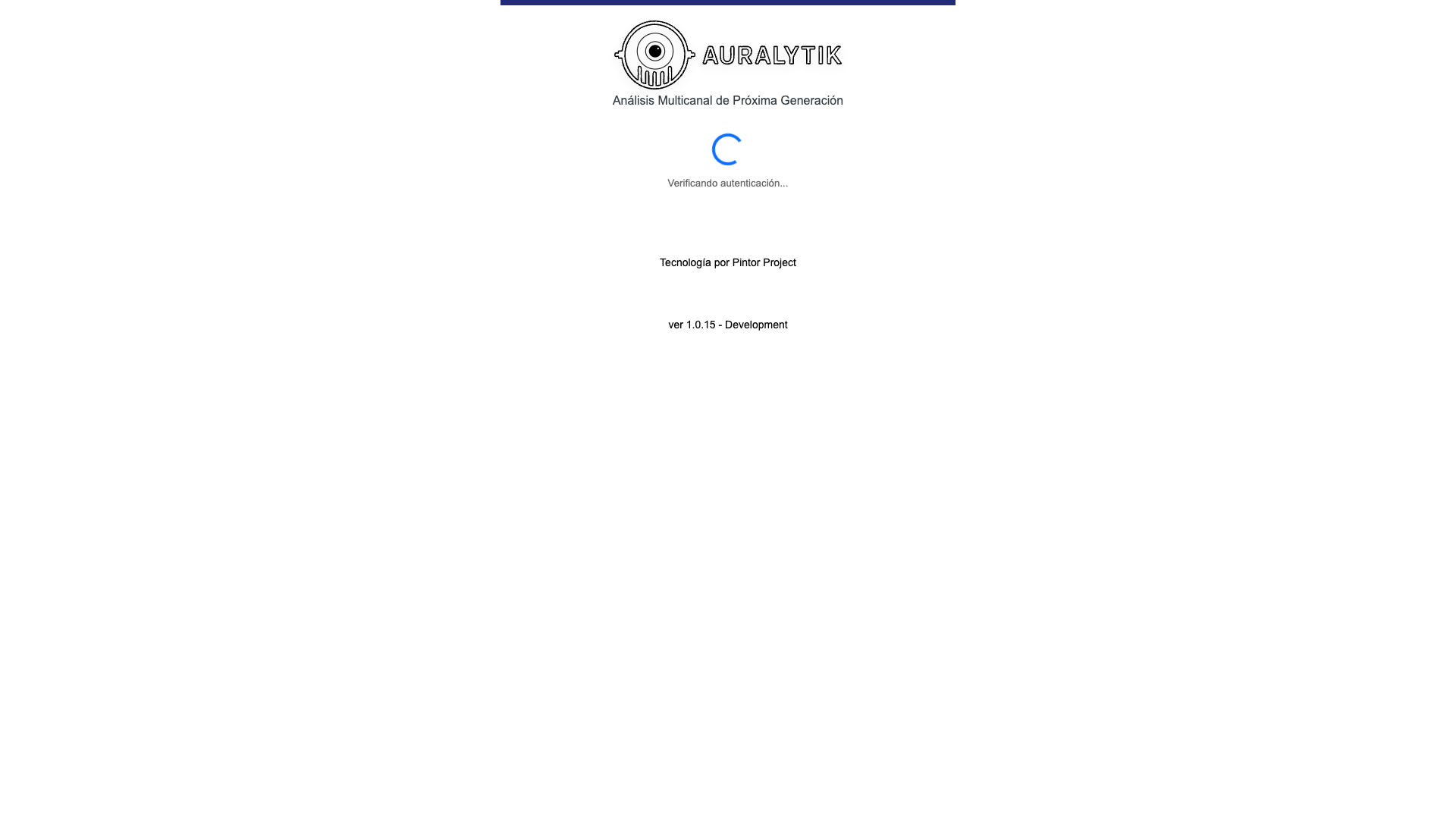
First time? If you received an invitation email, click the link in that email first. This will ensure your account is properly set up before logging in.
First-Time Setup
When you log in for the first time, you'll be guided through a quick setup process to configure your preferences.
Language
Choose your preferred interface language (English or Spanish)
Timezone
Set your timezone for accurate date/time display
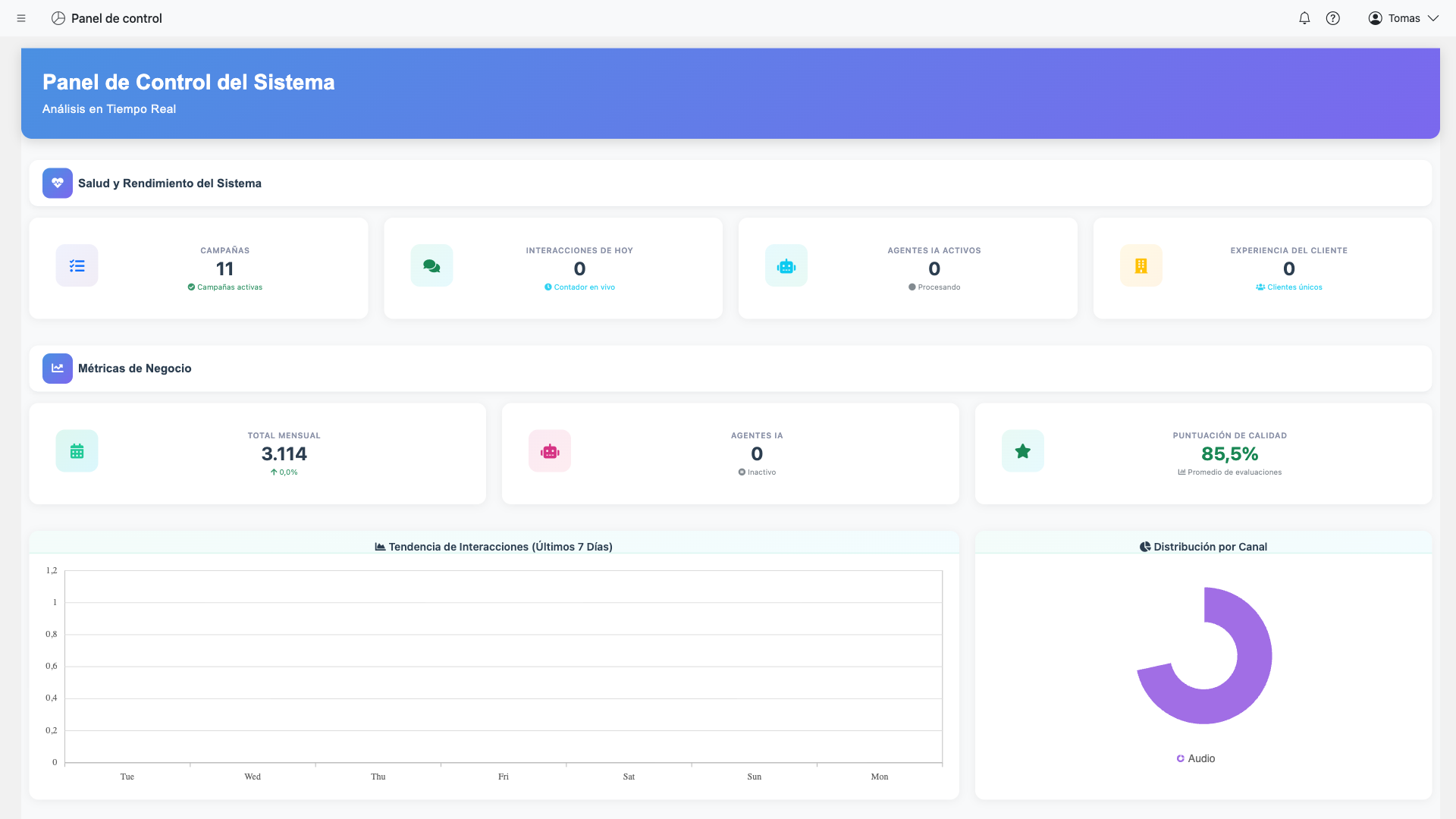
Note: You can change these settings later from your profile menu.
Dashboard Navigation
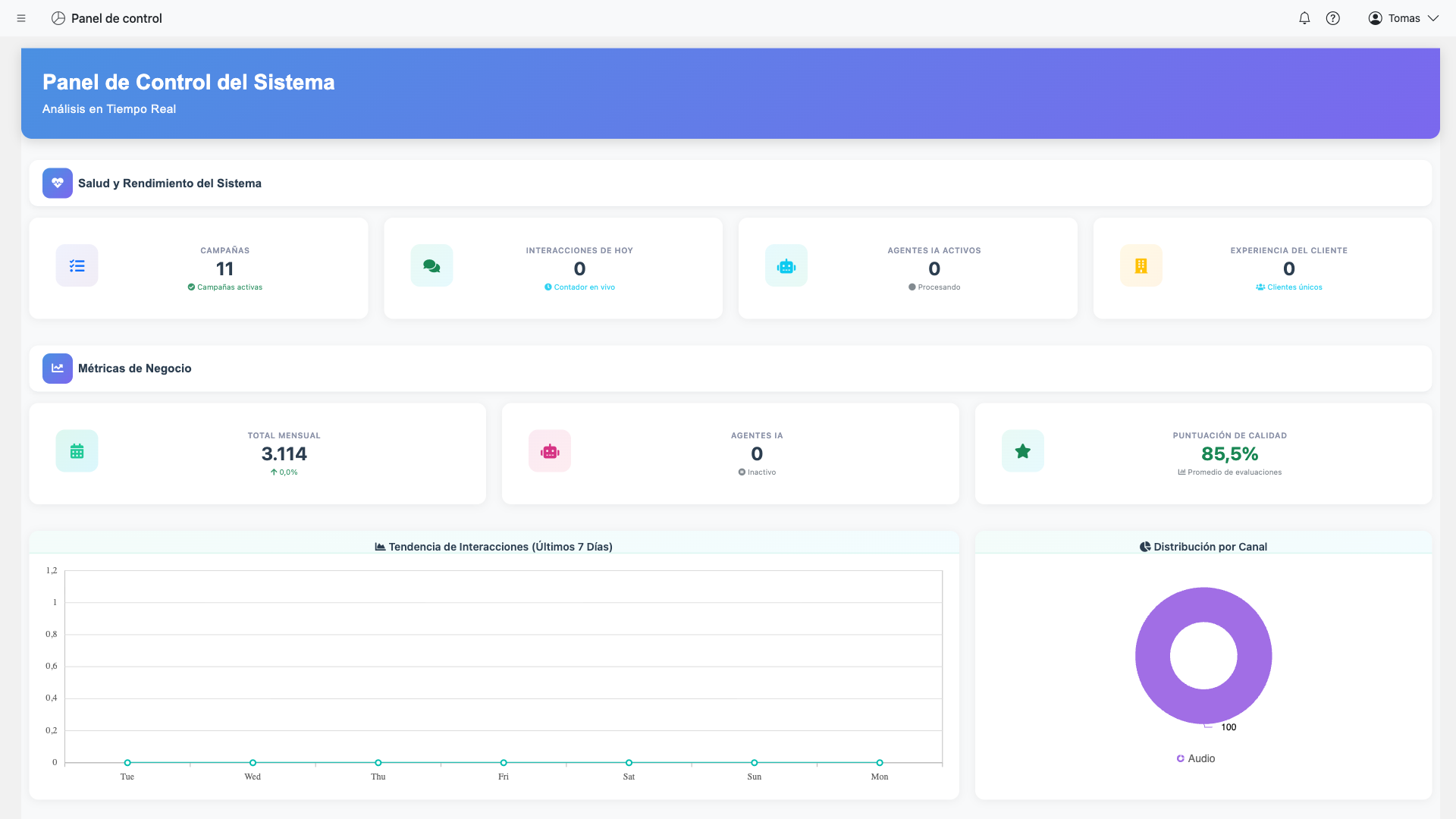
The Auralytik dashboard uses a sidebar navigation to access different modules. Here's an overview of the main sections:
Main Modules
AI Modules
AI Agents - Configure AI analysis agents
AI Flows - Build multichannel campaigns
AI Auditing - Review evaluations and quality
AI Sources - Manage data sources and channels
TextIQ - Text analysis and insights
Administration
Users - Manage team members and permissions
Settings - Configure account and client settings
Compliance - Access audit logs and compliance reports
Sidebar expanded showing all AI modules
Screenshot coming soon
Tip: The modules you see depend on your permissions and which features are enabled for your organization.
Profile & Settings
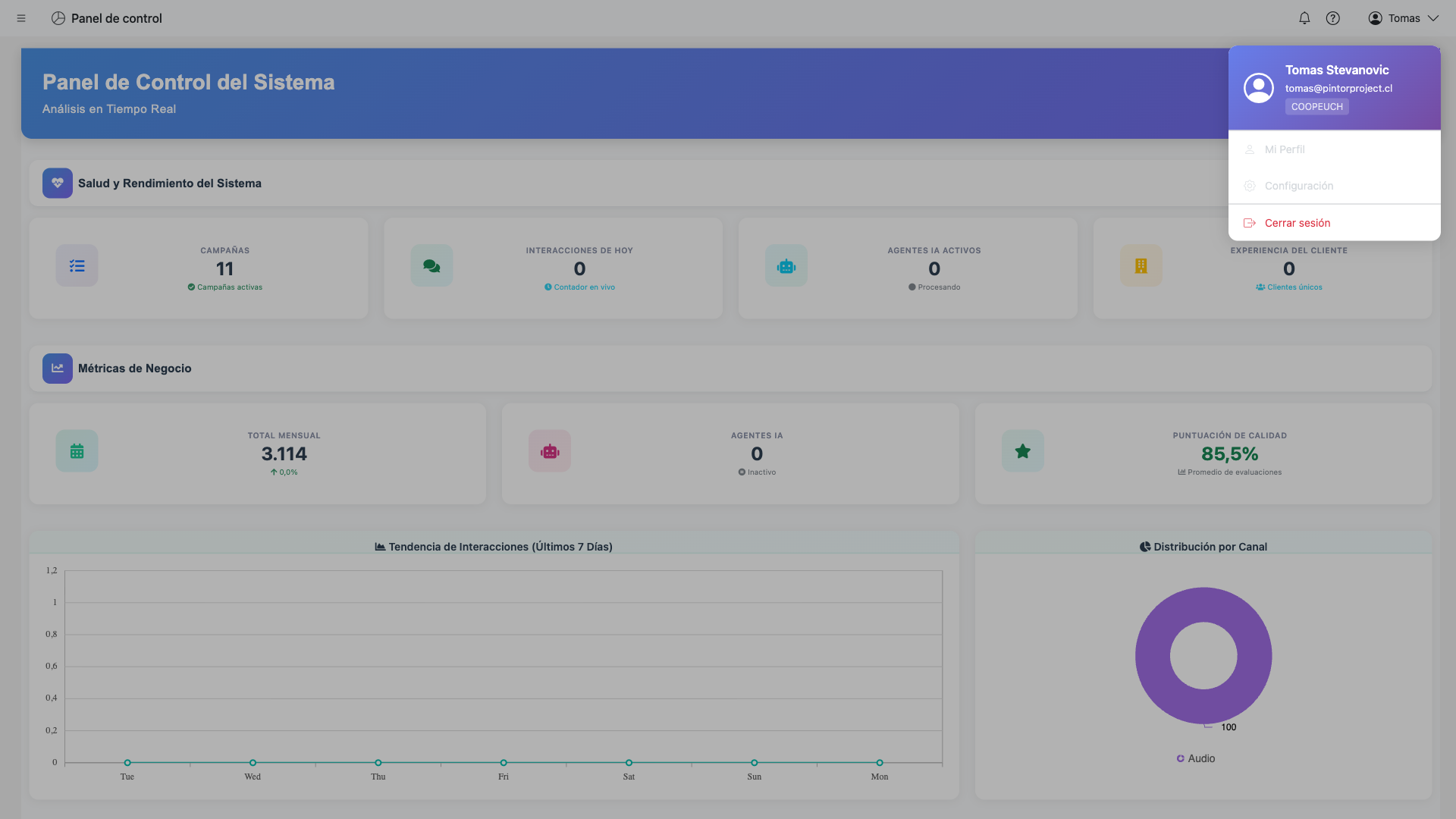
Access your profile and settings from the dropdown menu in the top-right corner of the dashboard.
Available Options:
- Profile: View your account information
- Preferences: Update language and timezone
- Help: Access support resources
- Sign Out: Securely log out of your session
What's Next?
Now that you're set up, explore these guides to learn more: