Transform Every Conversation Into Business Results
AI that listens, understands, and acts—across voice, chat, WhatsApp, and more.
Our Customers
Businesses across multiple industries rely on our platform to enhance operations, analytics, and customer interactions.


Powering Real-Time Intelligence
Across Every Channel
Experience how Auralytik combines AI, automation, and communication platforms to deliver actionable insights at scale.
- Real-time conversation analysis
- Multi-channel support (Voice, WhatsApp, SMS)
- Automated quality assurance
- Compliance monitoring
How Auralytik Works
Real-time AI analytics for better decision-making, seamless integration that enhances efficiency, and predictive insights to optimize service.
Advanced Analytics Engine
Cutting-edge AI that turns signals into decisions—instantly. Deep learning models analyze every conversation for sentiment, intent, and compliance.
Seamless Integration
Plugs into your existing telephony and CRM—no rip-and-replace. Deploy in weeks with full API support and pre-built connectors.
Predictive Performance
Anticipate needs and optimize service before issues arise. Real-time dashboards and historical trending for data-driven decisions.
Compliance First
Auto-detect violations, critical errors, and regulatory issues with comprehensive audit trails.
Multi-Channel
WhatsApp, Voice, SMS, and more—unified analytics across all your communication channels.
Agent Performance
Real-time scoring, coaching opportunities, and performance rankings for your team.
10 AI Modules Working Together
Auralytik ingests voice, text, and digital streams in real time. Our AI analyzes sentiment, intent, compliance, and operational KPIs—then orchestrates actions across your tools.
From automated workflows to predictive insights, everything works together to transform your customer operations.
- AI-powered conversation analysis across all channels
- Automated workflows that take action in real-time
- Live dashboards with actionable insights
- Seamless integration with your existing tools
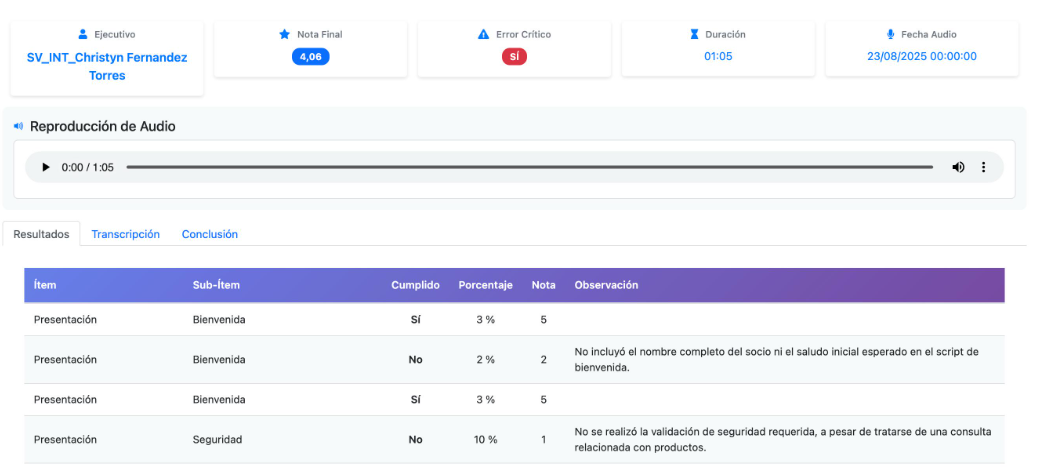
Intelligence In Real Time
Every conversation analyzed, every insight surfaced, every action triggered—as it happens.
Customer Sentiment
Real-time sentiment analysis across every conversation and channel.
Conversation Insights
Intent, topics, and key moments extracted automatically.
Automated Actions
Workflows triggered in real-time based on conversation events.
Performance Trends
Predictive analytics and historical trends across your operation.
And More!
Essential Emerging Technologies
Powered by cutting-edge AI to deliver intelligent insights and automation.
Deep Learning
Auralytik uses deep learning to detect patterns, anticipate trends, and make data-driven decisions, improving experience and efficiency.
NLP
With NLP, Auralytik interprets conversations, surfaces key information, and optimizes your communication strategies.
RPA
Auralytik uses RPA to automate routine tasks, ensuring efficient processing of interactions and improving operational agility.
Why Leading Teams Choose Auralytik
One platform. Every channel. Real results.
Reduce Operating Costs
Automate quality assurance, compliance monitoring, and conversation analysis. Cut manual review costs dramatically.
Eliminate Compliance Risk
Real-time violation detection with instant alerts. Protect your business from regulatory fines and legal exposure.
Boost Agent Performance
AI-powered coaching and real-time feedback transform every agent into a top performer.
Time to Value
Deploy in weeks, not months. Integrates with your existing tools—no rip-and-replace required.
Part of the Umiq Network
Auralytik is the conversation intelligence platform within the Umiq Business Intelligence Network. Connect with sister products for cross-domain insights.
See How AI Can Transform Your Customer Operations
From real-time insights to automated workflows—discover what's possible when every conversation becomes an opportunity.
Contact us 24/7: contact@auralytik.com