Draft Documentation
This guide is currently in development. Content may be incomplete or subject to change.
Email Rules & Automations
A step-by-step manual for operators: set up the rules that send automated emails when a campaign result qualifies, validate them safely, and monitor every send.
In this guide
Where to manage rules
You reach dispatch rules two ways:
- From a campaign's Automations tab — the rules for that campaign.
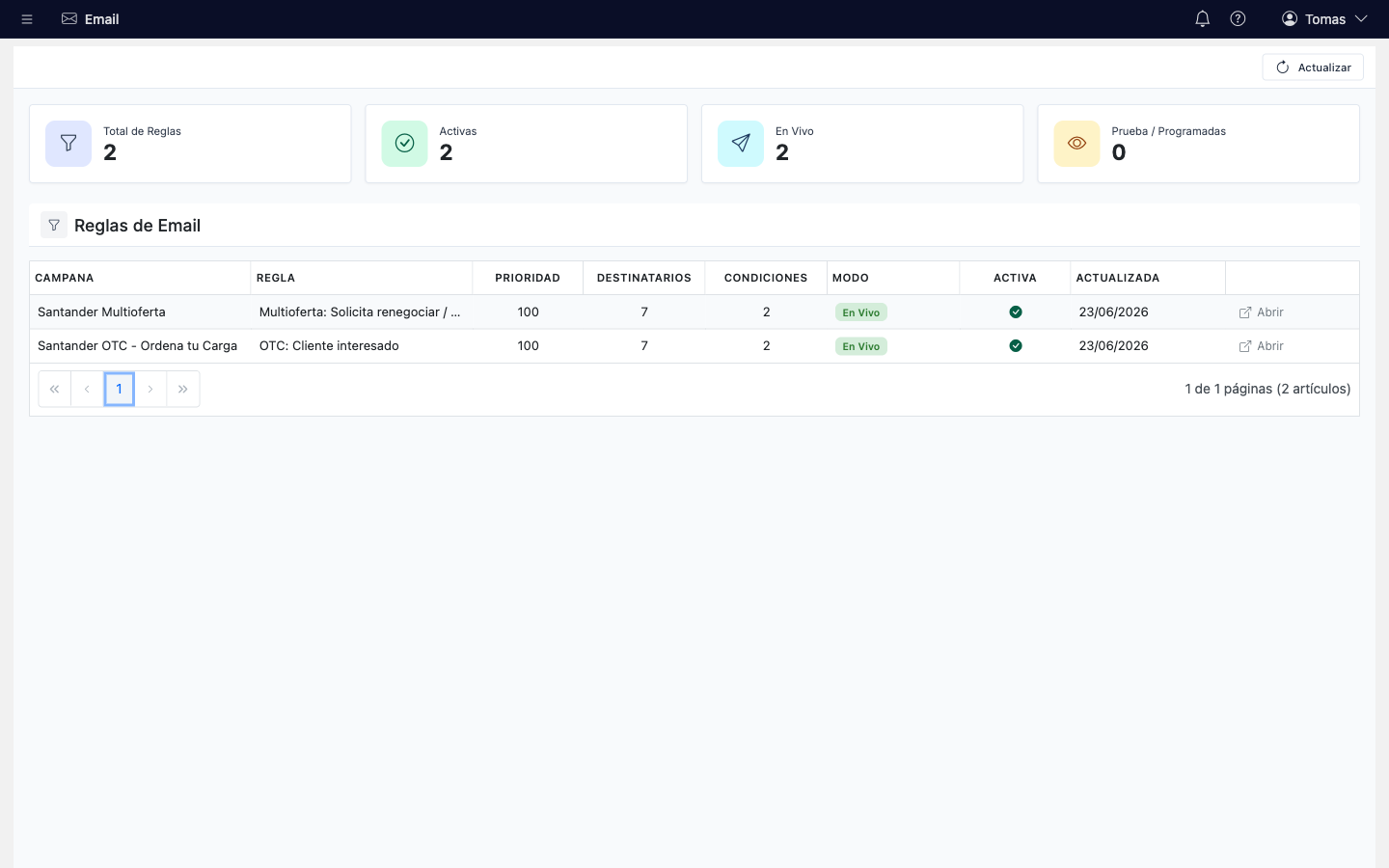
- From the client-wide Email Rules page (
/email/rules) — every rule across campaigns, with a mode badge (Live / Dry-run / Scheduled) and an editor per rule.
Access: you need the email permission enabled for your organization. If you don't see these pages, ask your administrator.
Anatomy of a rule
The rule editor has three tabs:
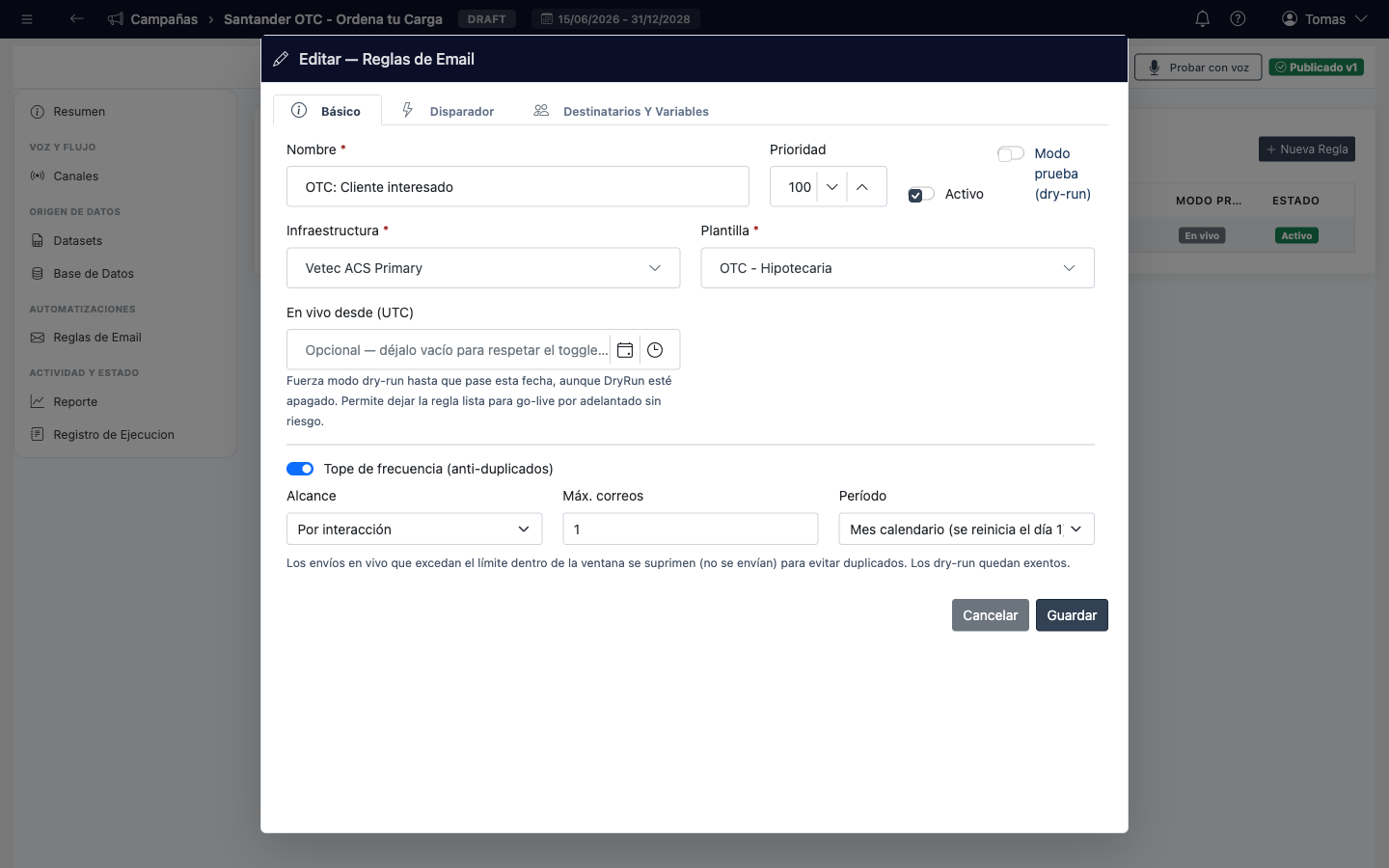
1. Basics
- Name, priority (lower number evaluated first) and active toggle.
- Architecture & template — the branded sender and the email content.
- Dry Run, Test Recipients and Live From — see Test mode & going live.
- Frequency cap — see below.
2. Triggers
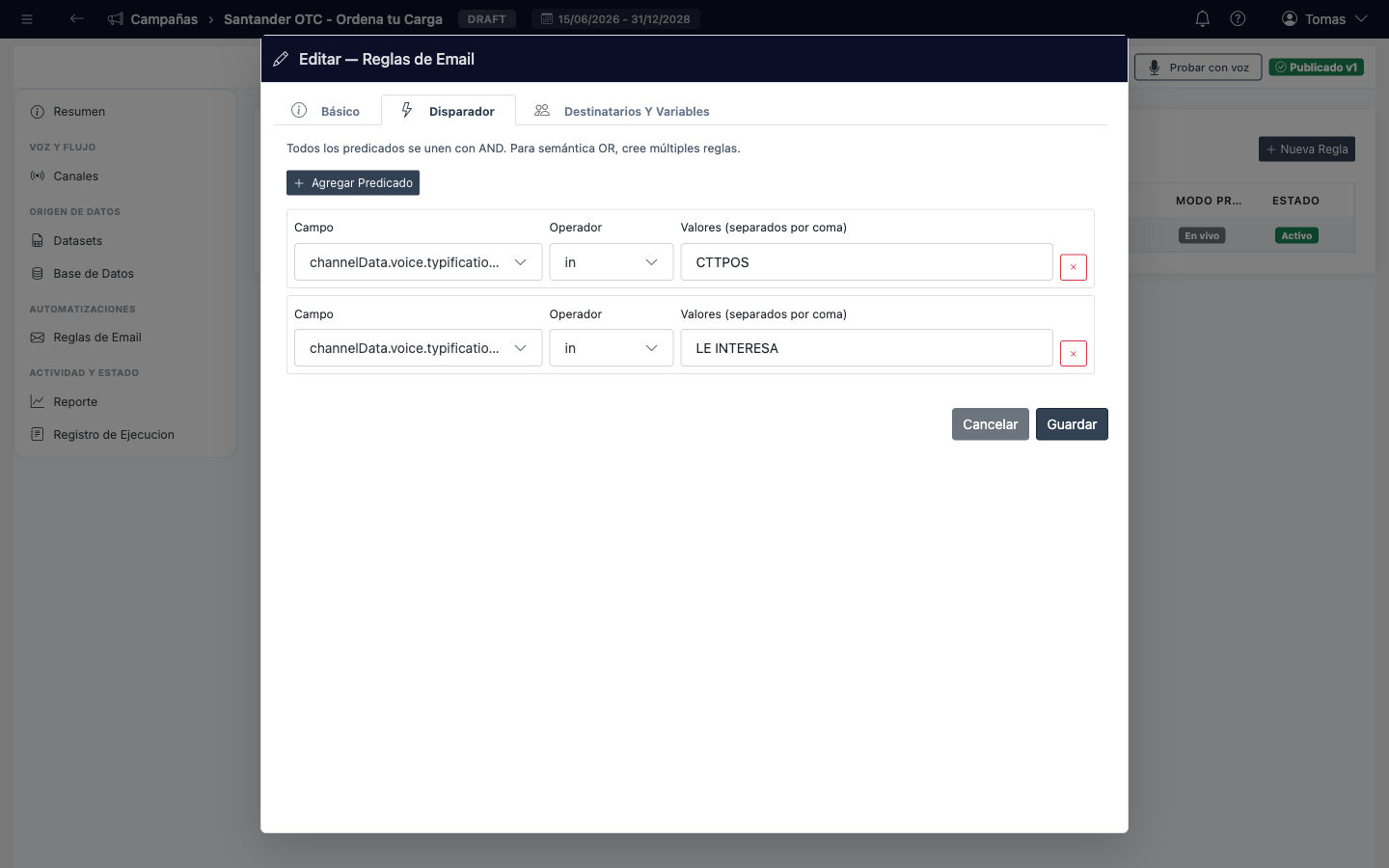
The conditions the result must meet. Each condition is a field, an operator (equals / not equals / in / not in) and one or more values. All conditions must be met (AND) for the email to be sent. For “either/or” logic, create separate rules.
3. Recipients & Variables
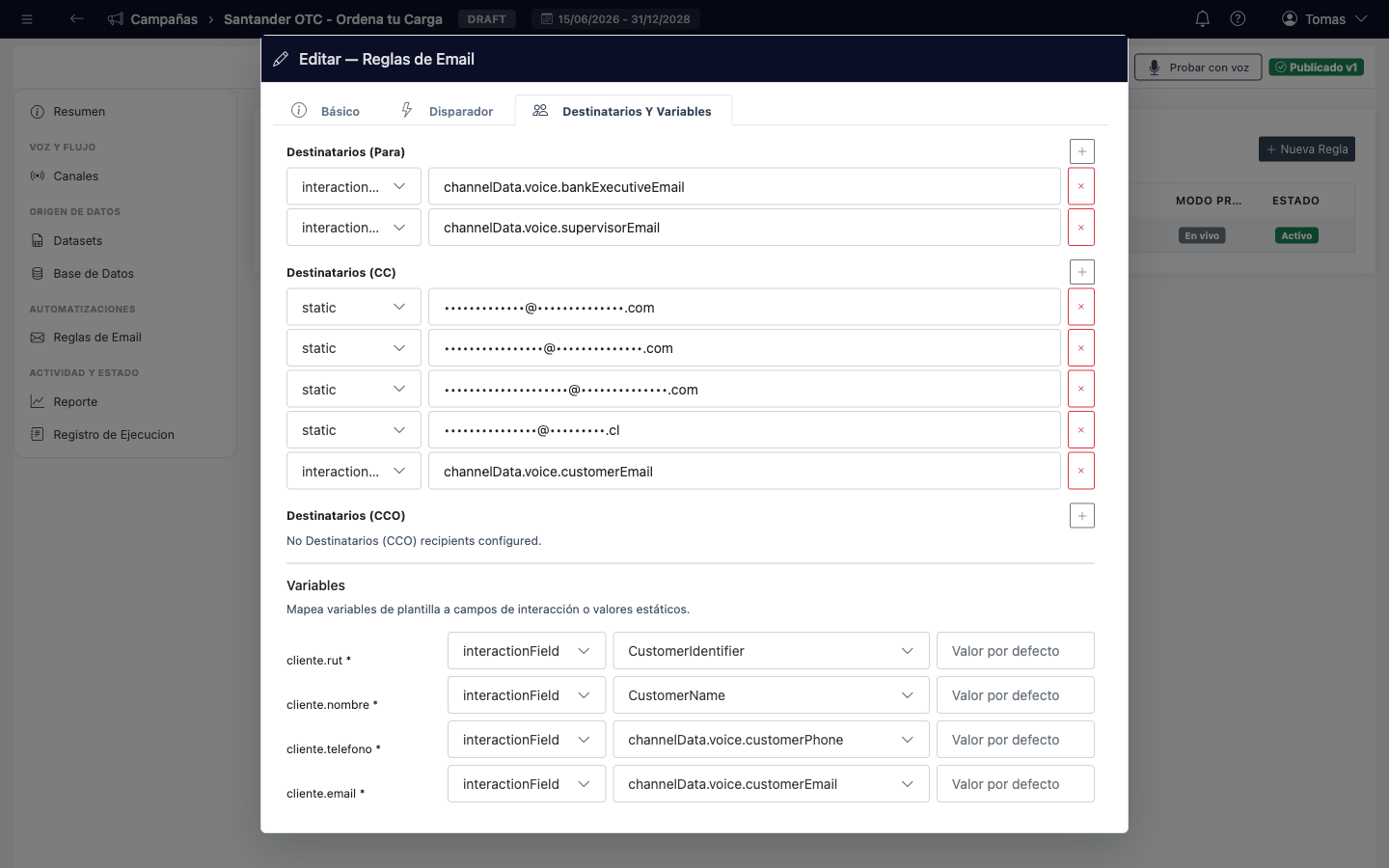
- To / CC / BCC — each entry is either a fixed address or one derived from the contact (for example, the assigned account executive or supervisor). The order you set is the order shown.
- Variables — map the template's placeholders to the contact's data, with an optional fallback when the source is empty.
Tip: if a derived recipient (e.g. supervisor) has no value for a given contact, that recipient is simply skipped — the email still goes to the rest.
Test mode & going live
Always validate before real contacts receive anything:
- Turn Dry Run ON and set Test Recipients. The email goes only to those test addresses (status Dry-run); real To/CC recipients receive nothing.
- Trigger a qualifying result and check the test email: content, branding, data, sender.
- When approved, turn Dry Run OFF (or set a Live From date to switch automatically) — now real recipients receive.
Dry Run ON
Only Test Recipients receive. Real To/CC are recorded for audit but not emailed.
Dry Run OFF (live)
Real To/CC receive; Test Recipients are ignored.
Frequency cap (anti-duplicate)
Prevents a contact from being emailed too often (e.g. more than once a month) — useful to avoid duplicates from repeated results. When enabled, live sends beyond the limit within the window are suppressed (not sent) and marked in the log. Dry-runs are exempt.
| Setting | Meaning |
|---|---|
| Scope | Per client (across campaigns), per client in this campaign, or per interaction. |
| Period | Calendar month (resets on the 1st) or rolling days. |
| Max emails | How many sends are allowed within the period (e.g. 1). |
Example — one per month per client: enable the cap, Scope = Per client, Period = Calendar month, Max = 1.
Templates
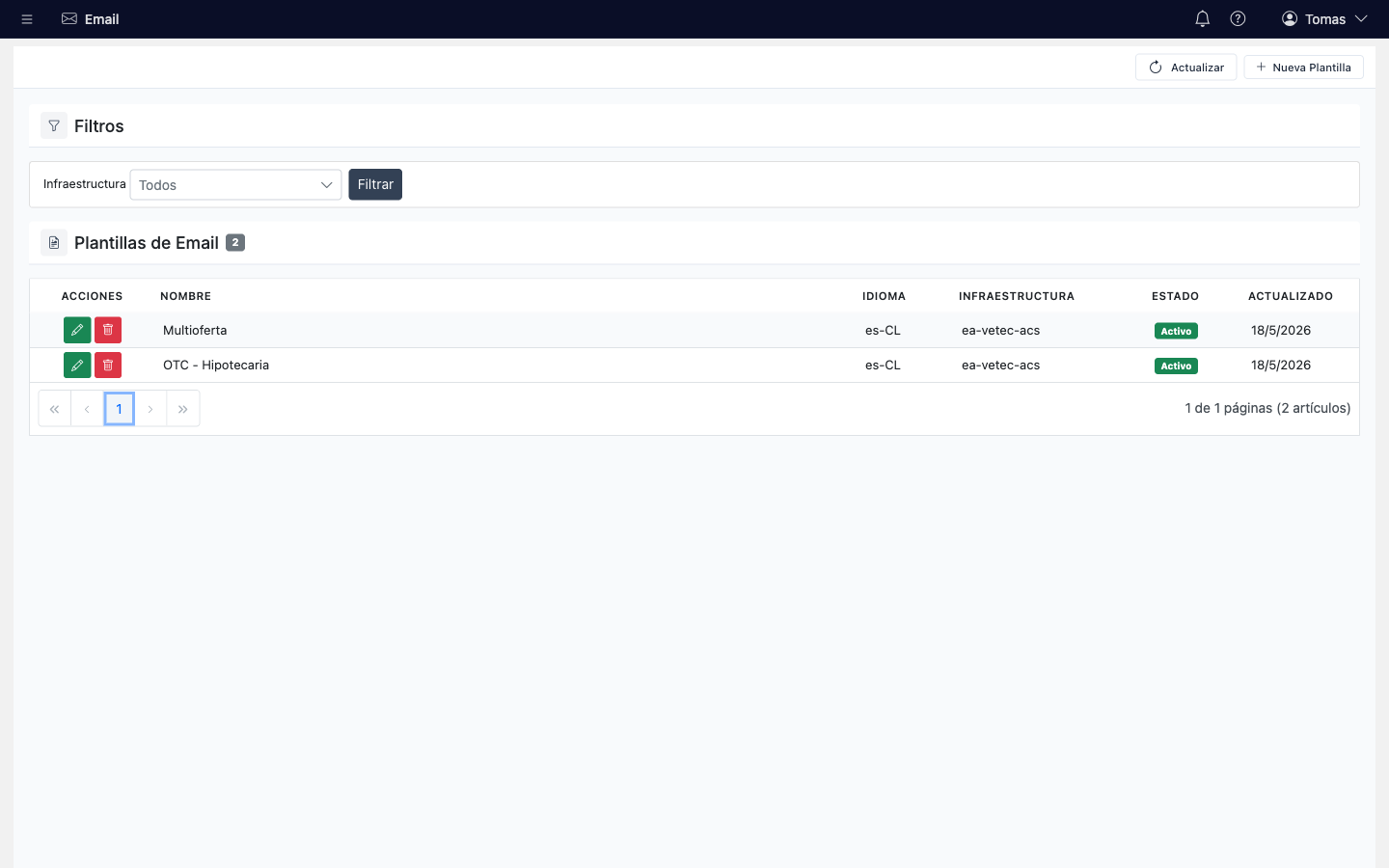
The rule references a template; the content (subject, body, brand images, variables) is edited in Email Templates (/email/templates). The same template is used for dry-run and live, so what you preview in a dry-run is exactly what goes out.
Shared content: editing a template affects every rule that uses it. To test a variation without touching production, duplicate the template first.
The dispatch log
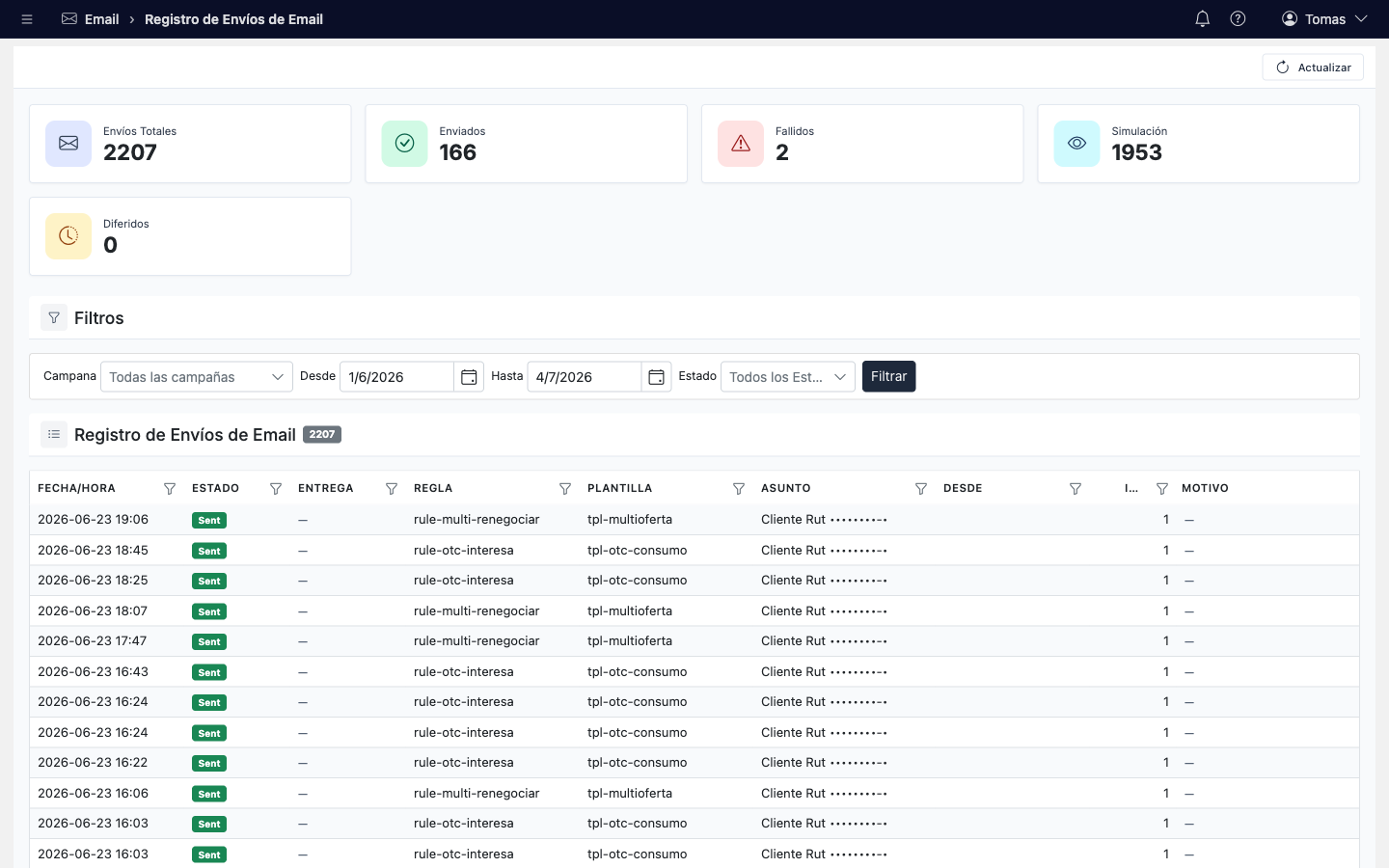
/email/dispatch-log gives full traceability, with totals and filters by campaign, date and status.
| Status | Meaning |
|---|---|
| Sent | Delivered to the provider for the real recipients |
| Dry-run | Sent only to test recipients |
| Deferred | Outside the legal sending window; sent when it reopens |
| Suppressed | Blocked by the frequency cap (not sent) |
| Failed | Could not be delivered (detail shows why) |
| Skipped | Did not qualify, or no valid recipient |
Legal sending window: emails only go out within the allowed days/hours. Anything triggered outside is held (Deferred) and delivered automatically when the window reopens — nothing is lost.
Daily checklist & troubleshooting
- Review Failed of the day (bad address / domain) and escalate if they repeat.
- Check Deferred are being re-sent when the window reopens.
- Confirm live sends land inside the legal window.
- If a rule never fires, re-check its Triggers and that it's active and live.